
Configuring Cassandra Security
You can follow this procedure to activate the JMX anonymous authentication and view your FS Cassandra nodes status in the FS UI.
Note: This feature is not available for versions prior to 8.1.201.82.
- Edit the launcher.xml file and set the following parameters to true:
-Dcom.sun.management.jmxremote.authenticate=true - Edit the following parameter:
-Dcom.sun.management.jmxremote.password.file=./etc/jmxremote.password - Copy: jmxremote.password.template
from: /jdk_install_location/jre/lib/management/
to: <FS Installation directory>/etc/
then rename it: jmxremote.password - Edit the <FS Installation directory>/etc/jmxremote.password file to add the following username:
fsadmin yourpassword - Change the ownership of jmxremote.password to the user you run FS with and change permission to read only.
For Linux,
chown fsadmin:fsadmin <FS Installation directory>/etc/jmxremote.password
chmod 400 <FS Installation directory>/etc/jmxremote.password
For Windows, see
https://docs.oracle.com/javase/8/docs/technotes/guides/management/security-windows.html
- Enable read and write permission to the FS user in:
/jdk_install_location/lib/management/jmxremote.access file:
fsadmin readwrite
- Edit your FS configuration and create the following options in the Options tab:
Section jmx
username=fsadmin
password=yourpassword
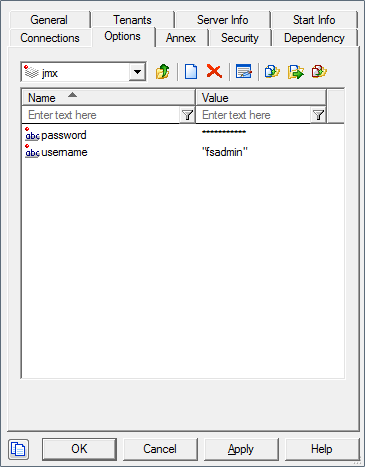
- Start FS. You can see the status of the Cassandra nodes in:
http://<FS_HOST>:<PORT>/fs/admin#system/cassandra/Cassandra JMX TLS
A Java Management Extensions (JMX) tool manages and monitors Cassandra. The JMX access must be protected to avoid any remote managing on the FS embedded Cassandra.
- To protect JMX access, edit the launcher.xml file and modify the parameters as follows:
-
-Dcom.sun.management.jmxremote.port=9192
-Dcom.sun.management.jmxremote.ssl=true
-Dcom.sun.management.jmxremote.authenticate=true
-Dcom.sun.management.jmxremote.registry.ssl=true - Set up Transport Layer Security (TLS). See Genesys Security Deployment Guide.
- Create keystore in <FS Installation directory>/etc/ and upload the custom-generated server certificates to keystore. See http://docs.oracle.com/javase/7/docs/technotes/guides/management/toc.html.
Note: If FS HTTPS is enabled already with a server certificate, same keystore and certificate can be used to secure JMX port also.
- Edit and configure the following JVM options in launcher.xml.
- javax.net.ssl.trustStore = /etc/keystore [path of the trust store file]
- javax.net.ssl.trustStorePassword =<trust store password>
- javax.net.ssl.keyStore =./etc/keystore [path of the keystore file]
- javax.net.ssl.trustStorePassword = <keystore password>
- javax.net.ssl.trustStore = /etc/keystore [path of the trust store file]
- Restart the FS to enable secure JMX connection with embedded Cassandra.
- To protect JMX access, edit the launcher.xml file and modify the parameters as follows:

Comments or questions about this documentation? Contact us for support!