
Customize Invites

|
Purpose: To describe how to customize the engagement invites. |
Modifying the Invite Message
If an actionable event is submitted to the Web Engagement Backend Server, the Genesys Web Engagement application displays a chat or web callback invitation to engage the customer. This invite message of the dialog box is defined in the WebEngagement_EngagementLogic project, located in apps/<application name>/_composer/.
To modify this Invite message:
Prerequisites
- The Genesys Rules Development Tool is installed, configured, and opened in Composer or in Eclipse.
- The following procedure uses Composer.
Start
- Navigate to
Window > Open Perspective > Other > Template Developmentto switch to the Template Development perspective of the Genesys Rules Authoring Developer Tool. - Select
File > Import.... - In the
Importdialog window, navigate toGeneral > Existing Projects into Workspace. ClickNext. - Select
Select Root Directory:, then clickBrowse. Select theWebEngagement_EngagementLogicproject located inapps/<application name>/_composer/.
Mandatory: Do NOT enable theCopy projects into workspaceoption. - Import your project.
- In the Project explorer, expand
WebEngagement_EngagementLogic/Worflows/engage.workflowand click on the ECMA Script object namedFulfillEngagementProfile. In the properties pane click on Script properties.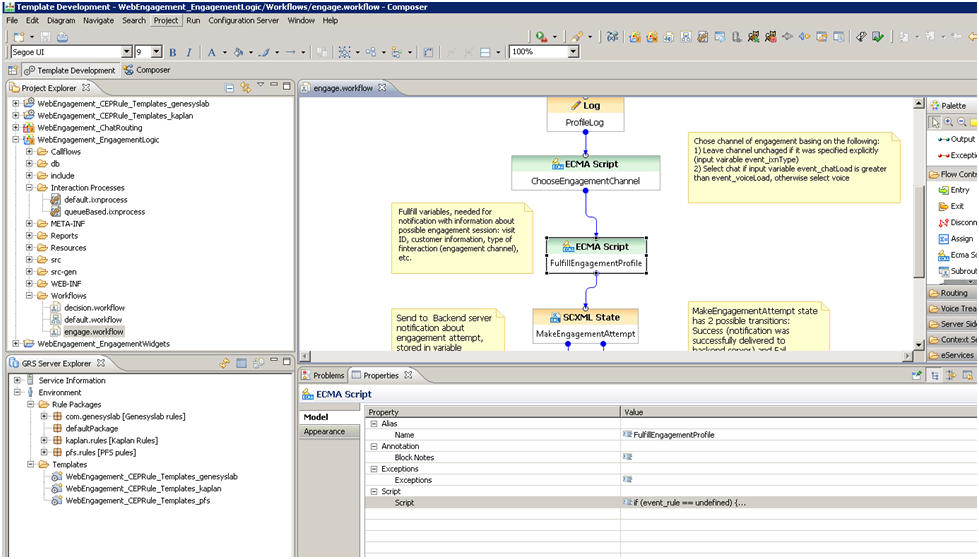
- Edit the ECMA Script and update the content of the message field in the variable
engageProfile:

var engageProfile = {
 'visit_id': event.visitID,
 'nick_name': profile.FirstName,
 'first_name': profile.FirstName,
 'last_name': profile.LastName,
 'email_address': customerAddress,
 'subject': channelName,
'message':'Hello. Would you like assistance with the topic of current page? Agents are available now to answer your questions.',
 'time_zone_offset': 8,
 'wait_for_agent' : false,
 'routing_point':sipRoutingPoint,
 'ixn_type': channelType,
 'pageId': event.pageID,
 'inviteTimeout': 30};
- Save your changes and generate the code.
- To make the changes available in the Genesys Web Engagement servers:
- Stop the servers in Genesys Administrator.
- Build and Deploy your Web Engagement Application as described in the User's Guide.
- Start your Web Engagement Servers as described in the User's Guide.
Modify the Logo used by the Frontend Server
- To modify the logo:
- Rename your logo image to logo_small.png and copy the file in
apps\<application name>\frontend\src\main\webapp\resources\img
- Or:
- Edit the
weinvite.cssfile\apps\<application name>\frontend\src\main\webapp\resources\css\directory, and modify the name and relative path of your logo here:.wedialog .dialog-content .branding-content{/*...*/ background-image: url(../img/logo_small.png);/*...*/}
- Rename your logo image to logo_small.png and copy the file in
- Save your changes and generate the code.
- To make the changes available in the Web Engagement servers:
- Stop the servers in Genesys Administrator;
- Build and Deploy your Web Engagement Application as described in the User's Guide;
- Start your Web Engagement Servers as described in the User's Guide.