
Contents
Configuring SpeechMiner
This section explains how to configure SpeechMiner after it is installed. Most of the configuration is performed in the SMConfig application. This is a Windows application that can be installed on any machine on your network. Once it is installed, it can be used, from any machine on which it is installed, to configure the entire SpeechMiner system. (For information about installing SMConfig, see Installing the Components.)
Required Permissions
The user account from which SMConfig is opened must have read, write, and modify permissions on the local installation folder and files.
For most of the configuration changes you can perform using SMConfig, you will need Administrator privileges on the current machine or on other machines. For each configuration task described below, the required permissions are listed. If you are running SMConfig as a non-administrator user, and errors are generated during the configuration process, make sure that you have the right permissions for the task.
In Windows Vista and later versions of Windows, if User Access Control is enabled, SMConfig will automatically require you to run it with administrator privileges. If User Access Control is disabled, it is recommended to manually run SMConfig with administrator privileges. To do this, right-click the SMConfig icon, and then select Run as administrator.
Encrypting the Connection to the Database
The connection between SMConfig and the database can be encrypted to ensure that confidential data cannot be intercepted and viewed by unauthorized people. This option is configured by the system administrator on the SQL database server. Three encryption settings can be defined there:
- Always use encryption
- Never use encryption
- Use encryption when the user requests it
If the latter setting is implemented in your system, you can choose to use an encrypted connection when you log into SMConfig. If the database server is configured to always encrypt or not to encrypt at all, you cannot change this option when you log into SMConfig, and selecting one of the options has no affect.
Opening SMConfig
SMConfig can be run on any machine in your system in which it is installed. During installation, an SMConfig icon is placed on the desktop of the machine.
You can log into SMConfig in one of the following ways:
- Using a SpeechMiner user account
- Using the Windows account you used to log onto the PC
- Using a Genesys user account and connecting to a Genesys configuration server for confirmation
To open SMConfig:
- On the desktop of the computer, double-click the
 icon. The SMConfig - Login dialog box appears.
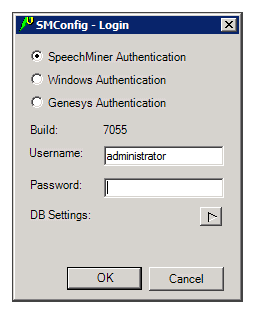
- Select the type of user account you want to use to log into SpeechMiner:
- SpeechMiner Authentication: Use a username and password that are managed by SpeechMiner.
- Windows Authentication: Use the username and password you used to log into Windows.
- Genesys Authentication: Use a Genesys username and password.
ImportantIf you are not sure which option to choose, consult your system administrator. - In the Username and Password fields, type your username and password.
ImportantIf you are logging in using Windows Authentication, your username and password are inserted automatically, and the username is in the form domain\username.
- If this is the first time you are opening SMConfig on this computer, or if you want to change the existing database settings, click the DB Settings arrow. The Login dialog box expands and displays the database settings.
ImportantIf you do not need to set or modify the database settings, skip this and the next step.

