
Control Your ACD Agent State from SIP Phones
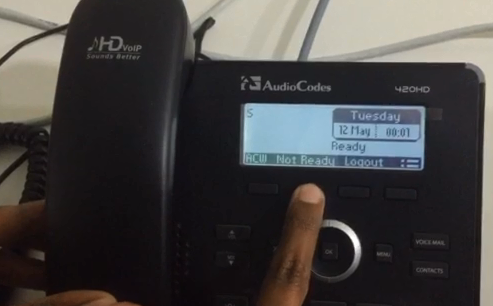
Agents can change their ACD Agent State using enabled desk phones made by Polycom, Yealink and AudioCodes/Genesys (420HD model with firmware version 2.2.2 or higher only). Here's how:
Agents: Change your ACD state from a desk phone
| Click the video below to watch an agent change his ACD code on an AudioCodes 420HD desktop phone:
|
xxxxxx |
Note: You can still do this on your desktop computer, using Agent Desktop. SIP Server synchronizes between your phone and your Agent Desktop when you finish using either tool. |
xxxxxxxxxxxxx |
Comments or questions about this documentation? Contact us for support!