
Configuring Access Control for GIR Users
Contents
The following sections describe, and provide examples of how to configure access control for Genesys Interaction Recording Users.
For more information about controlling the access for voice recording users, see Access Control for Voice Recording Users.
Configuring Access Groups
By default, the Configuration Server has an Access Group called Users stored in the configuration database.
Install the Solution Deployment SPD file "Creation of base SpeechMiner access groups" option to perform the following steps:
- Create an Access Group called SpeechMiner Users, and set the permission to grant the Users Access Group with Read access.
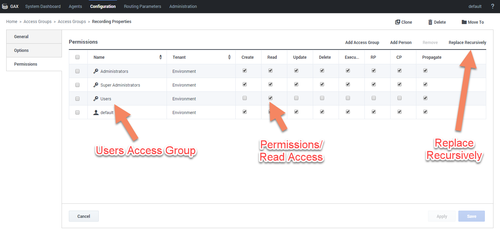
- Add a new folder within Access Groups, called Recording, and set the permission to add the Users Access Group with Read access. Make sure the Replace Permissions Recursively flag is set as shown in the following diagram:
- Create the / (forward slash) Access Group within the Recording folder.

Configuring SpeechMiner Users
All users for SpeechMiner must be assigned to two Access Groups—Users and SpeechMiner Users. If agent hierarchy and partition features are not used, assign all the SpeechMiner users to the / (slash) Access Group. If agent hierarchy or partition features are used, the users must be granted to the specific Access Groups in order to be able to access recordings for the various agent hierarchy and partitions.
- For your SpeechMiner users to have login access to the SpeechMiner UI, you must give SpeechMiner users Read and Execute rights on the default Application object.
- To see members in the User Access Group (by default, Speechminer Users) in the Speechminer UI, Log On As the account of Speechminer_WEB application should have Read rights to User Access Group.
- SpeechMiner User Access Group should correspond to the value in the SMConfig Recording tab. By default, the value is SpeechMiner Users.
You must configure Genesys Interaction Recording to enable the SpeechMiner UI search option to display a list of agent names:
- In the Agent's Person object, create a [recording] section in the Annex (if it doesn’t already exist).
- Add the agent_hierarchy option in the [recording] section, and set the value to slash: "/" or what is appropriate for access control.
- Repeat these steps for any additional agents that might be searched for in the SpeechMiner UI.
- The SpeechMiner cache might need to be updated for this configuration to take effect:
- In the configServer table of the Configuration Server database, update the updateAgentsEveryH column to the number of hours between the SpeechMiner person object updates. SpeechMiner will check the Configuration Server according to this option at regular intervals to retrieve the list of person objects under the Recording folder access group. The names of these agents are then available when searching for call recordings or screen recordings. Restart the Interaction Receiver IIS application for this change to take effect.
- If the list of agents does not update, update the NextAgentsUpdate column in the configServer table to a date in the near future to force a quicker update.
- The Access Group / (forward slash) grants access to all recordings.
- Genesys Recommends using caution when using the Audio Protection: Comments role. You might not hear any part of the call if the call being played has no comments. You will only hear audio the corresponds to the areas where comments have been made.
The follow is a screen shot showing the assignment of Access Group members to /Anthony/Paul in Genesys Administrator Extension:

The Recording Plug-in for Genesys Administrator Extension includes a Solution Definition (SPD) file that can be used to configure roles and access groups.
Configuring Roles
For information about configuring roles for Genesys Interaction Recording users, see Roles in the Genesys Administrator Extension User's Guide.
Configuring Agent Hierachy
Agent hierarchy and partitions are not required to record calls or access recordings; however, all agents must be assigned to the Users Access Group.
If agent hierarchy is required, assign the agent’s hierarchy by configuring the agent_hierarchy option in the recording section of the Person object's Annex tab. For each hierarchy name, create a corresponding Access Group object within the Recording folder.
For the example above, create the following Access Groups:
- /
- /Anthony
- /Anthony/John
- /Anthony/Paul
The deployment can also grant access control for each specific agent, and in order to use this functionality, create an Access Group for each agent. For the same example, create the following Access Groups:
- /Anthony/John/Agent1
- /Anthony/John/Agent2
- /Anthony/Paul/Agent3
- /Anthony/Paul/Agent4
- /Anthony/Anthony (parent and child with the same name)
- /Anthony/John and /Steve/John (branches under Anthony and Steve have the same name)
Configuring Partitions
For each partition used in the contact, create an Access Group object with the name of the partition within the Recording folder. For example, if there are three partitions— /sales, /support, and /marketing, create three Access Group objects named /sales, /support, and /marketing, respectively.
For more information about configuring Access Controls in Genesys Administrator Extension, see the Genesys Administrator Extension User Guide.