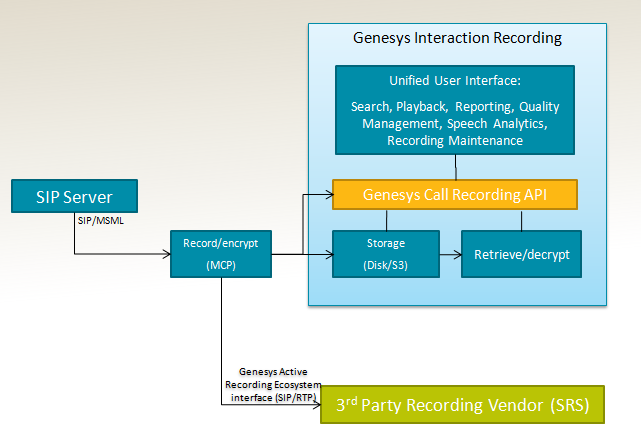
How Recording Works
Overview
Generally, the basic call flow for recording is as follows:
- Call recording is initiated in one of the following ways:
- Static configuration—Recording is enabled through static DN-level configuration on either the customer side (Trunk DN) or the agent side (Extension DN or Agent Login).
- Routing strategy—The routing strategy initiates recording through the TRouteCall request that it sends to SIP Server.
- T-Library client—A T-Library client initiates recording through a TPrivateService request that it sends to SIP Server.
- Based on this trigger, SIP Server builds a request URI that includes key recording-related parameters. It then sends this request URI in an INVITE to Resource Manager.
- Resource Manager determines the right Media Control Platform (MCP) to provide the service, and then forwards the INVITE to the selected MCP, to set up the service.
- SIP Server sends additional Media Server Markup Language (MSML) instructions in SIP INFO messages, telling Media Server to start the recording.
For additional control over the established recording session, the T-Library TPrivateService request can be used to initiate new actions—for example, to pause or resume recording. SIP Server forwards the resulting MSML instructions in new INFO messages.
Call Recording Interactions
If you want help to resolve conflict, ensure that your service is consistent, or ensure that you conform to the your compliance standards, consider this solution.
[+] Show diagrams that will help you determine which options is best suited for your needs.
In Recording-Only Mode
- When a call enters the contact center, SIP Server sends the call to Genesys Voice Platform (GVP) to process the recording.
- GVP sends the mp3 recording file to WebDAV to store.
- When GVP receives a successful notification that the file is stored, it sends the recording’s metatdata information to the Recording Processor Script.
- The Recording Processor Script parses the metadata received from GVP and retrieves the corresponding metadata from the ICON database that was previously provided by the SIP Servers.
- Once the metadata is retrieved from the ICON database successfully, the Recording Processor Script sends the information about the recording to Web Services.
- Web Services stores the recording information to the Cassandra database.
- Web Services tells the Recording Processor Script that the recording information is stored.
- The Recording Processor Script sends the recording file to the SpeechMiner.
In Recording and Analytics Mode
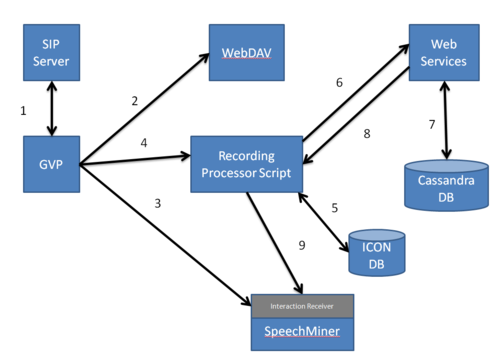
- When a call enters the contact center, SIP Server sends the call to Genesys Voice Platform (GVP) to process the recording.
- GVP sends the mp3 recording file to WebDAV to store.
- GVP also sends a .wav recording to SpeechMiner's Interaction Receiver to analyse.
- When GVP receives a successful notification that the file is stored, it sends the recording’s metatdata information to the Recording Processor Script.
- The Recording Processor Script parses the metadata received from GVP and retrieves the corresponding metadata from the ICON database that was previously provided by the SIP Servers.
- Once the metadata is retrieved from the ICON database successfully, the Recording Processor Script sends the information about the recording to Web Services.
- Web Services stores the recording information to the Cassandra database.
- Web Services tells the Recording Processor Script that the recording information is stored.
- The Recording Processor Script sends the recording file to the SpeechMiner.
Playing Back the Inbound Interactions
- Log into the SpeechMiner UI with your Genesys user credentials.
- In the background, SpeechMiner opens a two way session with the Recording Crytpo Server.
- Then, the Recording Crypto Server checks in the Genesys Configuration database that your username and password are correct.
- After your credentials have been successfully verified, you can search for your recording. Select your recording. In the background, SpeechMiner makes an API call to the Recording Crypto Server and tells Web Services to find the recording file.
- Web Services then searches the Cassandra database for the file you selected.
- When the recording file is found in the database, Web Services tells WebDAV to retrieve the file from storage.
- WebDAV streams the recording file to you through the Recording Crypto Server and the SpeechMiner UI.
Screen Recording Interactions
If you want help to ensure that your service is consistent consider using the screen recording solution.
[+] Show diagrams that will help you determine which options is best suited for your needs.
In Recording-Only Mode
- When you log into Workspace Web Edition, Workspace Wed Edition notifies Web Services about the request to login (through a HTTP load balancer).
- Workspace Web Edition initiates a connection to the Screen Recording Client.
- When you click Record, the Screen Recording Client, through the load balancer, tells Web Services to listen for the agent events via SIP Server.
- SIP Server tells Web Services that a voice recording has started, and Web services notifies the Screen Recording Client.
- When you stop the voice recording, SIP Server notifies Web Services, and Web Services notifies the Screen Recording Client.
- The Screen Recording client uploads the recording to Web Services.
- Web Services sends the recording file to WebDAV for storage and writes the metadata to the Cassandra database.
Playing Back the Interactions
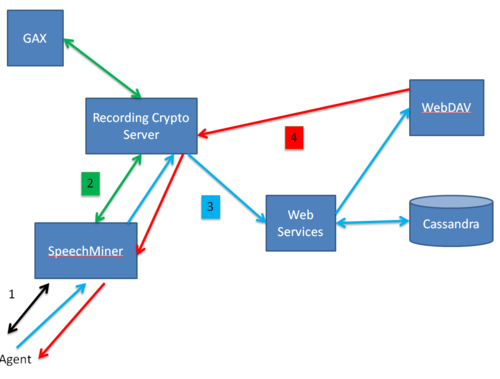
- Log into the SpeechMiner UI with your Genesys user credentials.
- In the background, SpeechMiner UI initiates a session with Web Services and Recording Crypto Server. Web Services and Recording Crypto Server also checks for your user credentials and permissions.
- After your credentials have been successfully verified, you can search for your recording using the UI's Interactions view, or Screen Recording view.
- In the Interactions view—If the voice interaction has an associated screen recording, SpeechMiner UI presents a thumbnail of the screen on the media player.
- When you play the recording, SpeechMiner UI retrieves the recording file from Recording Crypto Server if the recording is encrypted.
- The Recording Crypto Server retrieves the recording via Web Services and WebDAV, and decrypts the recording.
- In the Screen Recording view—Search for your screen recording file. The Screen Recording Client tells Web Services to find the recording.
- When the file is successfully found, select the recording file to play and the Recording Crypto Server retrieves the recording if the recording is encrypted.
- The Recording Crypto Server retrieves the recording via Web Services and WebDAV and decrypts the recording.
- WebDAV streams the recording file to you through the Recording Crypto Server and the SpeechMiner UI.
Supported Media File Formats
MSML-based call recording supports .wav G.711 for analytics, and mp3 (16 kbit) stereo for playback. In addition to the MP3 file, a second WAV (128 kbps) stereo file is written, reserved for Speech Analytics integration only.
Important
When working in a Recording Only deployment, do not select the
Convert the recognition file on-the-fly to option. In a Recording Only deployment use MP3 playback. In an Analytics deployment use WAV playback.
Mid-Call Control of the Recording Session
Using TPrivateService requests, T-Library clients can control, in real-time, an ongoing recording session. The client can pause, resume, or stop the recording. SIP Server translates recording-related parameters from the request to INFO messages that it sends to Genesys Media Server.
Supported mid-call actions are as follows:
- Stop the recording.
- Pause the recording.
- Resume a paused recording.
To control mid-call recording, the TPrivateService request uses the following parameters:
| Attribute
|
Value
|
| PrivateMsgID
|
Specifies the type of recording operation to be performed:
- GSIP_RECORD_STOP (3014)—Stops the recording.
- GSIP_RECORD_PAUSE (3015)—Pauses the recording.
- GSIP_RECORD_RESUME (3016)—Resumes the recording.
|
| ThisDN
|
Specifies the DN on behalf of which the recording operation is requested. This DN must be registered by the T-Library client.
|
| ConnectionID
|
References the ID for the call that is currently being recorded.
|
| Reasons
|
Specifies any reasons. Processed the same as for all other T-Library requests.
|
Recording During Transfers and Conferences
SIP Server supports continuous recording for calls that are transferred or added to a conference. Once recording is initiated (through DN configuration, routing strategy, or by T-library client), recording will continue for as long as one party that is set for recording remains in the call. Recording ends when no more recording-enabled parties are left.
Screen Recording
The screen recording feature for Genesys Interaction Recording allows agents to capture both voice and non-voice interactions that are currently being played on their computer monitors. This functionality uses Web Services as the screen recording server to provide a gateway for the screen recording client to interface with. Web Services has the following tasks:
- Authenticate and authorize screen recording clients
- Register client connections and associate with agents
- Coordinate recording controls
- Receive screen recording files from clients
- Store screen recording files to recording storage
- Store screen recording metadata
- Provide software updates to the clients
For more information, see Screen Recording Architecture.
Active Call Recording
Active call recording is comprised of the following:
- Session Recording Server (SRS)—The recording server function is a logical function that acts as the collector of the recorded media. The recording server is also a SIP User Agent that negotiates the parameters for the recorded media, and typically uses CTI to receive call metadata as well as run-time controls. The recording server function also provides the capability to search and retrieve recorded media, and may provide real-time analysis of the media. The term server does not necessarily mean the recording server only functions as a server; from Genesys point of view, the recording server is also a T-Lib client.
- Session Recording Client (SRC)—The recording client function is a SIP User Agent that acts as the source of the recorded media. This is a logical function that may span across multiple components, specifically; the combination of SIP Server and Media Server is the recording client function in Genesys environment. In some environments, the recording client function may be the combination of the PBX and the handset.
- Communication Session (CS)—The session created between the endpoints, such as a conversation between the customer and the agent. The communication session, sometimes also called the Recorded Session, may be on any transport, but in case for Genesys, SIP Server is managing the Communication session and hence the transport is SIP.
- Recording Session (RS)—A session created for the purpose of recording a Communication session. The Recording Session is SIP. Multiple recording sessions can be applied to a single communication session.
[+] Show diagrams describing Active Recording.
This diagrams that illustrates the relationship between the SRC and the SRS.
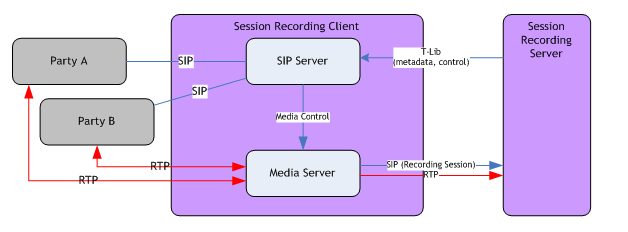
Genesys provides an Active Recording system by enabling call recording for third-party vendors acting as the SRS. Genesys Interaction Recording extends the Active Recording Ecosystem to directly store and manage call recording files, as well as to provide a suite of functionality to access the call recordings. This diagram shows the relationship of the applications related to call recording: