Agent Desktop settings
Configuring your Agent Desktop settings involves customizing the available options to meet the specific needs of your contact center.
To access the Contact Center Settings tab, click Contact Center Settings on the main menu. Then, on the Contact Center Settings tab, select the Desktop Settings option from the navigation menu. You can see only the objects that permissions enable you to view. If you need to edit an object that you don't see on the interface, contact your administrator.
You can customize the following objects:
Dispositions
On the Desktop Settings > Dispositions page, you can create a list of Disposition options to be displayed when an agent makes an outbound call or transfer. Dispositions are descriptions of the final outcome of a call. These codes are used to flag calls for reporting purposes.
Creating a sharable Disposition business attribute
Dispositions can be used as sharable business attributes for agents, agents groups, and the global contact center. To view an article about how to create sharable business attributes, see
Sharing Business Attributes in Agent Setup.
Tip
- To view an example of Disposition options in Agent Desktop, see What do I do at the end of a call? in Workspace Web Edition Help.
- In the table of configured Dispositions, in addition to selecting and adding Dispositions, you can also filter items using the Quick Filter field and delete a Disposition.
Selecting a disposition
- Select a business attribute:
- Select the folder you want to view from the Folder drop-down list box.
- Click the second drop-down list box and select the business attribute for the Disposition.
You can consider a business attribute to be the container that holds a list of Dispositions that have a common theme.
- Select a Disposition from the list.
Adding a disposition
- Select the folder you want to view from the Folder drop-down list box.
- Click the second drop-down list box and select the business attribute into which you want to add the Disposition.
- Click Add.
- Type the Name and Display Name for the new Disposition.
Tip
To add a new folder to the list, you can do one of the following:
- Click Add Folder; or
- To add a subfolder, click the Folder drop-down list box, select a folder, and then click the Add folder icon.
Custom agent states
On the Custom Agent States tab, you can add custom agent states that an agent can select for:
- After-call work
- Not ready reasons
You can organize custom agent states into folders. When you select the Folder option, a drop-down list box is displayed where you can select a folder or click the add folder icon  to create a new folder.
Global Favorites
You can create a list of globally favorite contacts and internal targets (like other agents, team leads, or call routing) in the Team Communicator for your agents. The Team Communicator is a contact directory that enables agents to view and manage contacts and contact information. A global favorite because it is marked by a locked star icon and cannot be removed from the Global Favorites list by an agent.
Click Desktop Settings > Global Favorites, and then select one of the following type for each entry:
- Agents
- Agent groups
- Skills
- Routing points
- Custom contacts
Then select the name of the contact entry from the second drop-down list box. You must also select a category. Categories allow you to organize how the favorites are displayed to the agent. For example, you might include a Supervisor category. You set up your categories by clicking inside the third drop-down list box and selecting New. After you assign a category, click Add.
You can add and delete global favorites, but you can't edit them after they are created.
Statistic definitions
You can configure what agent and contact center statistics are displayed to the Agent on their desktop. On the Statistics tab, you can:
- Add and edit statistics
- Import custom statistics
- Export all statistics
Agent statistics
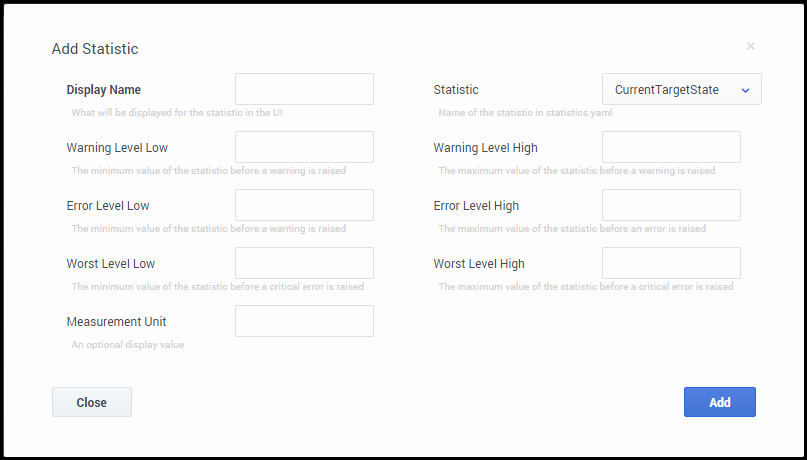
To access the Agent Statistics screen, click Statistics, and then click Agent Statistics. Click Add, select an option from the Statistic drop-down list box, configure the attributes for the statistic, and then click Add.
[+] Show a list of Agent Statistic attributes
You can set the following attributes for each statistic that you specify to be displayed to agents:
- measurement-unit: an optional display value.
- statistic-name: the name of the statistic to be displayed. This must correspond to the value of the name attribute in the statistics.yaml file.
- statistic-type (optional): the type of statistic, either numeric or duration (in HH:MM:SS format). If the attribute isn't specified, numeric format is used unless the statistic name ends with "Duration".
- warning-level-high (optional): the maximum value of the statistic before a warning is raised. No warnings below this value.
- warning-level-low (optional): the minimum value of the statistic before a warning is raised. No warnings above this value.
- error-level-high (optional): the maximum value of the statistic before an error is raised. No errors below this value.
- error-level-low (optional): the minimum value of the statistic before an error is raised. No errors above this value.
- worst-value-high (optional): the maximum value of the statistic before a critical error is raised.
- worst-value-low (optional): the minimum value of the statistic before a critical error is raised.
Contact center statistics
To configure Contact Center Statistics, you must add a resource. Resources can include agent groups, queues, and routing points. In the first drop-down list box, select the type of resource you want to add, and then select the the resource from the second drop-down list box. Click Add Resource to add a row to the Contact Center Statistics table.
Then you can add a statistic by clicking Add Statistics and configuring the options. This action adds a column to the Contact Center Statistics table.
The black checkmarks indicate that the statistic applies to a resource. For example, the current number in queue statistic does not apply to agents. Workspace Web Edition agent desktops shows only statistics with check marks; other desktops show only statistics with hyphens (-).
Important
Agents can only see Route Points on switches they are given permission to view. For example: Your Contact Center Statistics are configured to monitor the following routing points: RP1, RP2, and RP3. RP1 belongs to one switch while RP2 and RP3 belong to another switch. An agent who is only configured to log into the switch that contains RP1 can only see RP1 in the Contact Center Statistics. RP2 and RP3 are not visible to the agent because they belong to a switch that agent doesn’t have permission to access.
Managing statistic definitions
Using the Statistic Definitions tab, you can import, export, add, and edit statistic definitions. The supported formats for the statistic definition files are: .CSV and .YAML.
About CSV files
The .CSV file must be a text file in a comma-separated format. In the source file each line represents a single statistic.
About YAML files
Use a YAML file to import custom statistics from a valid .YAML file. The following example shows one custom statistic from a sample .YAML file:
[+] Show an example
name: ReadyDuration
 objectType: AGENT
 notificationMode: PERIODICAL
 notificationFrequency: 10
 statisticDefinitionEx:
   category: TotalAdjustedTime
   intervalType: GrowingWindow
   mainMask: WaitForNextCall
   subject: DNStatus
   dynamicTimeProfile: '8:00'
   dynamicFilter: MediaType=voice
 saveHistory: false
 insensitivity: 1
 location: /
How do I import custom statistic definitions?
To import a .CSV or .YAML file that contains your custom statistic definitions, click Import, select your file, and then click Open. User Setup validates the file and indicates which, if any, values need to be corrected. If you receive such a message, make the recommended corrections and then try again.
How do I export statistic definitions?
You can export your statistic definitions to an external .CSV or .YAML file. You can select your custom statistics, global statistics, or both. Then you can choose which file type to export. The exported file downloads to your local computer.
Supported Web Services and Application statistics
The following list includes all the statistics that Web Services and Application supports:
Queue Statistics
[+] Total_Answered
The number of customer interactions that entered a service type and were accepted, answered, or pulled by agent (s)/agent group (s) within the reporting time interval.
Definition in Configuration Server:
name: Total_Answered
notificationFrequency: 10
notificationMode: PERIODICAL
objectType: QUEUE
statisticDefinitionEx:
    category: TotalNumber
    dynamicTimeProfile: "0:00"
    intervalType: GrowingWindow
    mainMask: CallAnswered
    subject: DNAction
[+] Total_Abandoned
The number of interactions that were terminated by the customer while waiting on the service type during the reporting time interval. This stat type excludes interactions that were distributed to an agent and then abandoned before the agent could answer (Call Abandoned While Ringing).
Definition in Configuration Server:
name: Total_Abandoned
notificationFrequency: 10
notificationMode: PERIODICAL
objectType: QUEUE
statisticDefinitionEx:
    category: TotalNumber
    dynamicTimeProfile: "0:00"
    intervalType: GrowingWindow
    mainMask: CallAbandoned
    subject: DNAction
[+] Current_In_Queue
The number of customer interactions that are currently waiting in queue.
Definition in Configuration Server:
name: Current_In_Queue
notificationFrequency: 10
notificationMode: PERIODICAL
objectType: QUEUE
statisticDefinitionEx:
    category: CurrentNumber
    mainMask: CallWait
    subject: DNAction
No time profile.
[+] CurrMaxCallWaitingTime
The maximum waiting time for customer interactions currently waiting on a service
Definition in Configuration Server:
name: CurrMaxCallWaitingTime
notificationFrequency: 10
notificationMode: PERIODICAL
objectType: QUEUE
statisticDefinitionEx:
    category: CurrentMaxTime
    mainMask: CallWait
    relativeMask: CallWait
    subject: DNAction
No time profile.
[+] ServiceLevel
Ratio of call answered within given interval (specified by first time range) compared to (total number answered + total abandoned after delay specified by second time range).
name: ServiceLevel
statisticDefinitionEx:
    category: ServiceFactor1
    subject: DNAction
    intervalType: GrowingWindow
    dynamicTimeProfile: "0:00+1:00"
    timeRangeLeft: 0
    timeRangeRight: 120
    timeRangeLeft2: 0
    timeRangeRight2: 10
objectType: QUEUE
notificationMode: PERIODICAL
notificationFrequency: 10
[+] AverageWaitingTime
Average wait time for customer interactions what were entered and distributed/abandoned on a service type during reporting time interval Note: this will calculate wait time for all calls, including ones that were abandoned.
Definition in Configuration Server:
name: AverageWaitingTime
notificationFrequency: 10
notificationMode: PERIODICAL
objectType: QUEUE
statisticDefinitionEx:
    category: AverageTime
    dynamicTimeProfile: "0:00"
    intervalType: GrowingWindow
    mainMask: CallWait
    relativeMask: CallWait
    subject: DNAction
Skills Statistics
[+] CurrentNotReadyAgents
Number of not ready agents with skill
name: CurrentNotReadyAgents
notificationFrequency: 10
notificationMode: PERIODICAL
objectType: SKILL_AG
statisticDefinitionEx:
    category: CurrentNumber
    mainMask: NotReadyForNextCall
    subject: AgentStatus
Time profile - not used.
[+] CurrentReadyAgents
Number of ready agents with skill
name: CurrentReadyAgents
notificationFrequency: 10
notificationMode: PERIODICAL
objectType: SKILL_AG
statisticDefinitionEx:
    category: CurrentNumber
    mainMask: WaitForNextCall
    subject: AgentStatus
Time profile - not used.
[+] CurrNumberInCall
Number of agents with skill in call
name: CurrNumberInCall
notificationFrequency: 10
notificationMode: PERIODICAL
objectType: SKILL_AG
statisticDefinitionEx:
    category: CurrentNumber
    mainMask: CallUnknown, CallConsult, CallInternal, CallOutbound, CallInbound, CallRinging, CallDialing
    subject: AgentStatus
Time profile - not used.
[+] LongestIdleTime
The longest time an agent is currently waiting to receive a call (evaluated maximum of current idle time for all agents in group which are currently waiting to receive a call, may be 0 if no idle agents are present in group at the moment).
name: LongestIdleTime
notificationFrequency: 10
notificationMode: PERIODICAL
objectType: SKILL_AG
statisticDefinitionEx:
    category: CurrentMaxTime
    mainMask: WaitForNextCall
    subject: AgentStatus
Time profile - not used.
[+] AverageHandlingTime
The average amount of time during the reporting interval that agent/agent groups spent on customer interactions including After Call Work (ACW)/ wrap-up status.
name: AverageHandlingTime
notificationFrequency: 10
notificationMode: PERIODICAL
objectType: SKILL_AG
statisticDefinitionEx:
    category: AverageTime
    dynamicTimeProfile: "0:00"
    intervalType: GrowingWindow
    mainMask: CallUnknown, CallConsult, CallInternal, CallOutbound, CallInbound, AfterCallWork
    relativeMask: CallUnknown, CallConsult, CallInternal, CallOutbound, CallInbound
    subject: DNStatus
[+] ServiceLevel
Ratio of call answered within given interval (specified by first time range) compared to (total number answered + total abandoned after delay specified by second time range).
name: ServiceLevel
statisticDefinitionEx:
    category: ServiceFactor1
    subject: DNAction
    intervalType: GrowingWindow
    dynamicTimeProfile: "0:00+1:00"
    timeRangeLeft: 0
    timeRangeRight: 120
    timeRangeLeft2: 0
    timeRangeRight2: 10
objectType: SKILL_Q
notificationMode: PERIODICAL
notificationFrequency: 10
Agent Statistics
[+] AverageHandlingTime
name: AverageHandlingTime
notificationFrequency: 10
notificationMode: PERIODICAL
objectType: AGENT
statisticDefinitionEx:
    category: AverageTime
    dynamicTimeProfile: "0:00"
    intervalType: GrowingWindow
    mainMask: CallUnknown, CallConsult, CallInternal, CallOutbound, CallInbound, AfterCallWork
    relativeMask: CallUnknown, CallConsult, CallInternal, CallOutbound, CallInbound
    subject: DNStatus
[+] Productivity
name: Productivity
notificationFrequency: 10
notificationMode: PERIODICAL
objectType: AGENT
statisticDefinitionEx:
    category: AverageNumberPerRelativeHour
    dynamicTimeProfile: "0:00"
    intervalType: GrowingWindow
    mainMask: CallInbound,CallOutbound,CallInternal,CallConsult,CallUnknown
    relativeMask: '*,~LoggedOut,~NotMonitored'
    subject: AgentStatus
[+] InboundCalls
name: InboundCalls
notificationFrequency: 10
notificationMode: PERIODICAL
objectType: AGENT
statisticDefinitionEx:
    category: TotalNumber
    dynamicTimeProfile: "0:00"
    intervalType: GrowingWindow
    mainMask: CallInbound
    subject: DNAction
[+] InternalCalls
name: InternalCalls
notificationFrequency: 10
notificationMode: PERIODICAL
objectType: AGENT
statisticDefinitionEx:
    category: TotalNumber
    dynamicTimeProfile: "0:00"
    intervalType: GrowingWindow
    mainMask: CallInternal
    subject: DNAction
[+] OutboundCalls
name: OutboundCalls
notificationFrequency: 10
notificationMode: PERIODICAL
objectType: AGENT
statisticDefinitionEx:
    category: TotalNumber
    dynamicTimeProfile: "0:00"
    intervalType: GrowingWindow
    mainMask: CallOutbound
    subject: DNAction
[+] ConsultCalls
name: ConsultCalls
notificationFrequency: 10
notificationMode: PERIODICAL
objectType: AGENT
statisticDefinitionEx:
    category: TotalNumber
    dynamicTimeProfile: "0:00"
    intervalType: GrowingWindow
    mainMask: CallConsult
    subject: DNAction
[+] ReadyDuration
name: ReadyDuration
notificationFrequency: 10
notificationMode: PERIODICAL
objectType: AGENT
statisticDefinitionEx:
    category: TotalAdjustedTime
    dynamicTimeProfile: "0:00"
    intervalType: GrowingWindow
    mainMask: WaitForNextCall
    subject: AgentStatus
[+] WrapDuration
<description>
name: WrapDuration
notificationFrequency: 10
notificationMode: PERIODICAL
objectType: AGENT
statisticDefinitionEx:
    category: TotalAdjustedTime
    dynamicTimeProfile: "0:00"
    intervalType: GrowingWindow
    mainMask: AfterCallWork
    relativeMask: AfterCallWork
    subject: AgentStatus
[+] TalkDuration
name: TalkDuration
notificationFrequency: 10
notificationMode: PERIODICAL
objectType: AGENT
statisticDefinitionEx:
    category: TotalAdjustedTime
    dynamicTimeProfile: "0:00"
    intervalType: GrowingWindow
    mainMask: CallUnknown, CallConsult, CallInternal, CallOutbound, CallInbound
    subject: DNAction
[+] HoldDuration
name: HoldDuration
notificationFrequency: 10
notificationMode: PERIODICAL
objectType: AGENT
statisticDefinitionEx:
    category: TotalAdjustedTime
    dynamicTimeProfile: "0:00"
    intervalType: GrowingWindow
    mainMask: CallOnHoldInbound,CallOnHoldOutbound,CallOnHoldInternal,CallOnHoldConsult,CallOnHoldUnknown
    subject: DNAction
Agent Statistics for eServices
[+] AverageHandlingTime_Chat
name: AverageHandlingTime_Chat
notificationFrequency: 10
notificationMode: PERIODICAL
objectType: AGENT
features: api-multimedia-chat
statisticDefinitionEx:
dynamicFilter: "MediaType=chat"
category: AverageTime
dynamicTimeProfile: "0:00"
intervalType: GrowingWindow
mainMask: InteractionHandlingUnknown,Coaching,InteractionHandlingInternal,InteractionHandlingOutbound,InteractionHandlingInbound
relativeMask: InteractionHandlingUnknown,Coaching,InteractionHandlingInternal,InteractionHandlingOutbound,InteractionHandlingInbound
subject: DNStatus
maskType: MEDIA
[+] AverageHandlingTime_Email
name: AverageHandlingTime_Email
notificationFrequency: 10
notificationMode: PERIODICAL
objectType: AGENT
features: api-multimedia-email
statisticDefinitionEx:
dynamicFilter: "MediaType=email"
category: AverageTime
dynamicTimeProfile: "0:00"
intervalType: GrowingWindow
mainMask: InteractionHandlingUnknown,Coaching,InteractionHandlingInternal,InteractionHandlingOutbound,InteractionHandlingInbound
relativeMask: InteractionHandlingUnknown,Coaching,InteractionHandlingInternal,InteractionHandlingOutbound,InteractionHandlingInbound
subject: DNStatus
maskType: MEDIA
[+] Productivity_Chat
name: Productivity_Chat
notificationFrequency: 10
notificationMode: PERIODICAL
objectType: AGENT
features: api-multimedia-chat
statisticDefinitionEx:
dynamicFilter: "MediaType=chat"
category: AverageNumberPerRelativeHour
dynamicTimeProfile: "0:00"
intervalType: GrowingWindow
mainMask: InteractionHandlingInbound,InteractionHandlingOutbound,InteractionHandlingInternal,Coaching,InteractionHandlingUnknown
relativeMask: '*,~Available,~NotAvailable'
subject: AgentStatus
maskType: MEDIA
[+] Productivity_Email
name: Productivity_Email
notificationFrequency: 10
notificationMode: PERIODICAL
objectType: AGENT
features: api-multimedia-email
statisticDefinitionEx:
dynamicFilter: "MediaType=email"
category: AverageNumberPerRelativeHour
dynamicTimeProfile: "0:00"
intervalType: GrowingWindow
mainMask: InteractionHandlingInbound,InteractionHandlingOutbound,InteractionHandlingInternal,Coaching,InteractionHandlingUnknown
relativeMask: '*,~Available,~NotAvailable'
subject: AgentStatus
maskType: MEDIA
[+] InboundChats
name: InboundChats
notificationFrequency: 10
notificationMode: PERIODICAL
objectType: AGENT
features: api-multimedia-chat
statisticDefinitionEx:
dynamicFilter: "MediaType=chat"
category: TotalNumber
dynamicTimeProfile: "0:00"
intervalType: GrowingWindow
mainMask: InteractionHandlingInbound
subject: DNAction
maskType: MEDIA
[+] InboundEmails
name: InboundEmails
notificationFrequency: 10
notificationMode: PERIODICAL
objectType: AGENT
features: api-multimedia-email
statisticDefinitionEx:
dynamicFilter: "MediaType=email"
category: TotalNumber
dynamicTimeProfile: "0:00"
intervalType: GrowingWindow
mainMask: InteractionHandlingInbound
subject: DNAction
maskType: MEDIA
[+] ChatDuration
name: ChatDuration
notificationFrequency: 9
notificationMode: PERIODICAL
objectType: AGENT
features: api-multimedia-chat
statisticDefinitionEx:
dynamicFilter: "MediaType=chat"
category: TotalAdjustedTime
dynamicTimeProfile: "0:00"
intervalType: GrowingWindow
mainMask: InteractionHandlingUnknown, Coaching, InteractionHandlingInbound
subject: DNAction
maskType: MEDIA
[+] EmailDuration
name: EmailDuration
notificationFrequency: 9
notificationMode: PERIODICAL
objectType: AGENT
features: api-multimedia-email
statisticDefinitionEx:
dynamicFilter: "MediaType=email"
category: TotalAdjustedTime
dynamicTimeProfile: "0:00"
intervalType: GrowingWindow
mainMask: InteractionHandlingUnknown, Coaching, InteractionHandlingInbound
subject: DNAction
maskType: MEDIA
[+] TimeInCurrentChat
name: TimeInCurrentChat
notificationFrequency: 10
notificationMode: PERIODICAL
objectType: AGENT
features: api-multimedia-chat
statisticDefinitionEx:
dynamicFilter: "MediaType=chat"
category: CurrentTime
mainMask: '*'
subject: AgentStatus
maskType: MEDIA
[+] TimeInCurrentEmail
name: TimeInCurrentEmail
notificationFrequency: 10
notificationMode: PERIODICAL
objectType: AGENT
features: api-multimedia-email
statisticDefinitionEx:
dynamicFilter: "MediaType=email"
category: CurrentTime
mainMask: '*'
subject: AgentStatus
maskType: MEDIA
[+] OutboundEmails
name: OutboundEmails
notificationFrequency: 10
notificationMode: PERIODICAL
objectType: AGENT
features: api-multimedia-email
statisticDefinitionEx:
dynamicFilter: "MediaType=email"
category: TotalNumber
dynamicTimeProfile: "0:00"
intervalType: GrowingWindow
mainMask: InteractionHandlingOutbound
subject: DNAction
maskType: MEDIA
[+] TransferredChats
name: TransferredChats
notificationFrequency: 10
notificationMode: PERIODICAL
objectType: AGENT
features: api-multimedia-chat
statisticDefinitionEx:
dynamicFilter: "MediaType=chat"
category: TotalNumber
dynamicTimeProfile: "0:00"
intervalType: GrowingWindow
mainMask: TransferMade
subject: DNAction
maskType: MEDIA
[+] MissedChats
name: MissedChats
notificationFrequency: 10
notificationMode: PERIODICAL
objectType: AGENT
features: api-multimedia-chat
statisticDefinitionEx:
dynamicFilter: "MediaType=chat"
category: TotalNumber
dynamicTimeProfile: "0:00"
intervalType: GrowingWindow
mainMask: InteractionRevoked
subject: DNAction
maskType: MEDIA
[+] RejectedChats
name: RejectedChats
notificationFrequency: 10
notificationMode: PERIODICAL
objectType: AGENT
features: api-multimedia-chat
statisticDefinitionEx:
dynamicFilter: "MediaType=chat"
category: TotalNumber
dynamicTimeProfile: "0:00"
intervalType: GrowingWindow
mainMask: InteractionRejected
subject: DNAction
maskType: MEDIA
[+] TransferredEmails
name: TransferredEmails
notificationFrequency: 10
notificationMode: PERIODICAL
objectType: AGENT
features: api-multimedia-email
statisticDefinitionEx:
dynamicFilter: "MediaType=email"
category: TotalNumber
dynamicTimeProfile: "0:00"
intervalType: GrowingWindow
mainMask: TransferMade
subject: DNAction
maskType: MEDIA
[+] MissedEmails
name: MissedEmails
notificationFrequency: 10
notificationMode: PERIODICAL
objectType: AGENT
features: api-multimedia-email
statisticDefinitionEx:
dynamicFilter: "MediaType=email"
category: TotalNumber
dynamicTimeProfile: "0:00"
intervalType: GrowingWindow
mainMask: InteractionRevoked
subject: DNAction
maskType: MEDIA
[+] RejectedEmails
name: RejectedEmails
notificationFrequency: 10
notificationMode: PERIODICAL
objectType: AGENT
features: api-multimedia-email
statisticDefinitionEx:
dynamicFilter: "MediaType=email"
category: TotalNumber
dynamicTimeProfile: "0:00"
intervalType: GrowingWindow
mainMask: InteractionRejected
subject: DNAction
maskType: MEDIA
[+] ReadyDuration_Email
name: ReadyDuration_Email
notificationFrequency: 10
notificationMode: PERIODICAL
objectType: AGENT
features: api-multimedia
statisticDefinitionEx:
dynamicFilter: "MediaType=email"
category: TotalAdjustedTime
dynamicTimeProfile: "0:00"
intervalType: GrowingWindow
mainMask: Available
subject: AgentStatus
maskType: MEDIA
[+] ReadyDuration_Chat
name: ReadyDuration_Chat
notificationFrequency: 10
notificationMode: PERIODICAL
objectType: AGENT
features: api-multimedia-chat
statisticDefinitionEx:
dynamicFilter: "MediaType=chat"
category: TotalAdjustedTime
dynamicTimeProfile: "0:00"
intervalType: GrowingWindow
mainMask: Available
subject: AgentStatus
maskType: MEDIA
External URLs
You can integrate internal and external websites into your agent's Workspace main view. At the Workspace level, the external website is displayed in dedicated tabs. These tabs allow you to access the website without leaving Workspace.
At the interaction level, there are two ways to display websites depending the main interaction type.
- For voice, the external Website is displayed in the background when an interaction is selected. When the interaction is unselected or closed, the external website is replaced with the previous panel displayed in the background.
- For multimedia, the external website is displayed in a dedicated view in the case data.
To add a URL to the list, select Workspace or Interaction from the Level menu, type a label for the URL, type or paste the URL in the URL field, and click Add.
Case Data
On the Desktop Settings > Case Data page, you can specify the information to be displayed to the agent when a call, chat, or other interaction when an interaction is transferred to them.
Creating a sharable Case Data business attribute
Case data can be used as sharable business attributes for agents, agents groups, and the global contact center. To view an article about how to create sharable business attributes, see Sharing Business Attributes in Agent Setup.
Tip
- To view an example of Case Data in Agent Desktop, see Contact and interaction history in Workspace Web Edition Help.
- In the table of configured Case Data, in addition to selecting and adding Case Data, you can also filter items using the Quick Filter field and delete a Case Data.
Selecting Case Data
- Select a business attribute:
- Select the folder you want to view from the Folder drop-down list box.
- Click the second drop-down list box and select the business attribute for the Disposition.
You can consider a business attribute to be the container that holds a list of Dispositions that have a common theme.
- Select a Case Data from the list.
Adding Case Data
Select the folder you want to view from the Folder drop-down list box.
- Click the second drop-down list box and select the business attribute into which you want to add the Case Data.
- Click Add.
- Specify a name and display name.
- Select Mandatory to specify that the case data is mandatory.
- Enable the Read Only option if you do not want the agent to be able to update the data. Or, select a data validation type, such as Boolean, String, or Integer, which allows the agent to edit the data. Note that if the case data is mandatory, the Read Only option is disabled.
Tip
To add a new folder to the list, you can do one of the following:
- Click Add Folder; or
- To add a subfolder, click the Folder drop-down list box, select a folder, and then click the Add folder icon.
To configure the order in which the case is displayed in the UI, click Sort Case Data and follow the instructions in the dialog box.
Toast Data
On the Desktop Settings > Toast Data page, you can specify the information to be displayed to the agent when they receive a call, chat, or other interaction.
Creating a sharable Toast business attribute
Toast Data can be used as sharable business attributes for agents, agents groups, and the global contact center. To view an article about how to create sharable business attributes, see Sharing Business Attributes in Agent Setup.
Tip
- To view an example of Toast Data in Agent Desktop, see Contact and interaction history in Workspace Web Edition Help.
- In the table of configured Toast Data, in addition to selecting and adding Toast Data, you can also filter items using the Quick Filter field and delete a Toast Data.
Selecting Toast Data
- Select a business attribute:
- Select the folder you want to view from the Folder drop-down list box.
- Click the second drop-down list box and select the business attribute for the Disposition.
You can consider a business attribute to be the container that holds a list of Dispositions that have a common theme.
- Select a Toast Data from the list.
Adding Toast Data
Select the folder you want to view from the Folder drop-down list box.
- Click the second drop-down list box and select the business attribute into which you want to add the Toast Data.
- Click Add.
- Specify a name and display name.
Tip
To add a new folder to the list, you can do one of the following:
- Click Add Folder; or
- To add a subfolder, click the Folder drop-down list box, select a folder, and then click the Add folder icon.
Caller ID
On the Desktop Settings > Caller ID page, you can create a list of Caller Identification (ID) options to be displayed when an agent makes an outbound call or transfer. A Caller ID is typically the phone number that you want displayed on the phone of the person who receives the call when the agent consults, conferences, or transfers a call.
You can also specify a display name, such as your company name, to be included with the Caller ID. For example, SalesForMore 1-555-555-5555. In this case, Agent Desktop shows SalesForMore on the list of Caller IDs that an agent can select.
Creating a sharable Caller ID business attribute
Caller IDs can be used as sharable business attributes for agents, agents groups, and the global contact center. To view an article about how to create sharable business attributes, see
Sharing Business Attributes in Agent Setup.
Tip
- To view an example of Caller ID options in Agent Desktop, see How do I manually select a Caller Identification? in Workspace Web Edition Help.
- In the table of configured Caller IDs, in addition to selecting and adding Caller IDs, you can also filter items using the Quick Filter field and delete a Caller ID.
Selecting a Caller ID
- Select a business attribute:
- Select the folder you want to view from the Folder drop-down list box.
- Click the second drop-down list box and select the business attribute for the Caller ID.
You can consider a business attribute to be the container that holds a list of Caller IDs that have a common theme.
- Select a Caller ID from the list.
Adding a new Caller ID
- Select the folder you want to view from the Folder drop-down list box.
- Click the second drop-down list box and select the business attribute into which you want to add the Caller ID.
- Click Add.
- Type the Name and Display Name for the new Caller ID.
Tip
To add a new folder to the list, you can do one of the following:
- Click Add Folder; or
- To add a subfolder, click the Folder drop-down list box, select a folder, and then click the Add folder icon.



