
How to Create and Insert Field Codes
Using Field Codes includes:
Creating Field Codes
From the Knowledge Manager browser window:
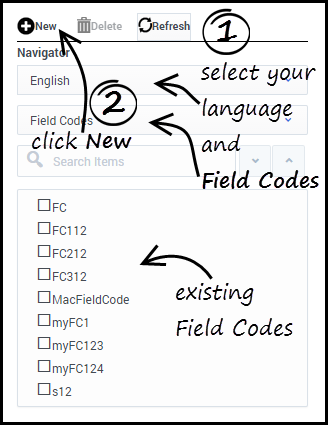
- Select the language and Field Codes from the drop-down menus.
- Click New.
- To configure your new Field Code, enter the properties you need in the Field Code configuration pane and then click Save.
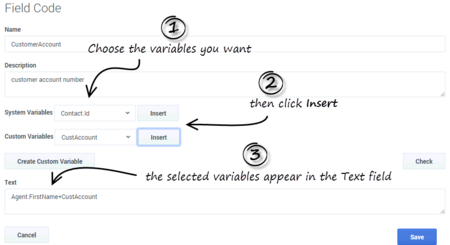
The new Field Code appears in the Category Tree pane. You can edit a Field Code anytime by double-clicking it in the Category Tree. - Enter a name and (optionally) a description for the field code.
- Select System and/or Custom variables from the drop-down lists.
- Click Insert to populate the text box with the selected variables.
See a detailed discussion of variables in Knowledge Manager.If the custom variable you need is not in the list, you can [+] create a custom variable.
- Enter any other desired text in the Text field. This text must conform to the rules described in Using Formulas in Field Codes.
- Click Check to verify that the field code is well-formed (that is, that it has no typographical errors, missing parentheses, and so on).


Next Steps
Inserting Field Codes into a Standard Response
- On the Categories tab, do one of the following:
- Double-click a standard response. The Edit Standard Response dialog box opens.
-
Right-click and select New. The New Standard Response
dialog box opens.
-
These two dialog boxes are identical apart from their titles. The figure "New Standard Response" shows New Standard Response.

New Standard Response

List of Field Codes
Important
Standard Responses that are intended for use in FAQ objects should not contain field codes.Next Steps
-
Examine the use of field codes in Field Code Examples.
Comments or questions about this documentation? Contact us for support!