
Contents
E-mail Server Administration
This section provides information for administrators regarding E-mail Server. In addition to the topics on this page, there is also information on the following:
- How E-mail Server uses JavaMail properties.
- The types of notification of delivery status and message disposition.
- How to customize the e-mails from external resources.
See also information, applying to both UCS and E-mail Server, on mixing IPv6 and IPv4 and on running the server as a Windows Service with TLS.
Limitations
- Attachments—There is no limit on the size of attachments to e-mails. You can use the maximum-msg-size option to limit the overall size of incoming messages (that is, the total size of all message parts, including the body and any attachments).
- UCS:
- E-mail Server 8.1.2 can work only with UCS 8.1.1 or later (however UCS 8.1.1 can work with any version of E-mail Server).
- E-mail Server 8.1.3 or later requires UCS 8.1.3 or later.
- E-mail Server 8.5.x requires UCS 8.1.4 or later.
- For optimal performance, Genesys recommends that you use no more than 25 mailboxes with each instance of E-mail Server.
Note on Deleting Interactions in Strategies
In its requests to UCS, E-mail Server provides parameters for tenant ID, Interaction type, Interaction subtype, status, and parent ID.
Therefore, when E-mail Server updates threaded interactions in UCS, the parent interaction must still exist in the UCS database. For example, in the case of a chat interaction and a chat transcript being sent, the parent must not be deleted before E-mail Server successfully sends the transcript.
In versions prior to 8.1.400.10, when E-mail Server sent an e-mail, it incorrectly updated the corresponding interaction in the UCS database. This incorrect update prevented statistics from being computed correctly.
Connecting to a Proxy Server
Starting in release 8.5.1, E-mail Server can connect to a SOCKS or HTTP proxy server. To do this, you must create a section called [proxy] in the E-mail Server Application object, containing the following options:
useProxy
Default value: false
Valid values: true, false
Any value other than true means that no proxy will be used.
port
Default value: No default value
Valid values: Positive integer value smaller than 65535.
If the port number is absent or invalid, an IllegalArgumentException is thrown explaining the error.
host
Default value: No default value
Valid values: Alphanumeric string
Name or IP address of the proxy's host. Examples: 192.168.15.28, myProxyHost. If a bad value is provided or E-mail Server is for some reason not able to connect to the specified host on the specified port, a MailConnectException is thrown. If no host is provided, an IllegalArgumentException is thrown.
user
Default value: No default value
Valid values: Alphanumeric string
Optional user name to authenticate on the proxy. If this option is present, password must also be present.
password
Default value: No default value
Valid values: Alphanumeric string
Optional password to authenticate on the proxy. If this option is present, user must also be present.
socksVersion
Default value: 5
Valid values: Alphanumeric string
For SOCKS proxy only: version of the SOCKS proxy being used. Only version 5 is supported. This option is not needed for an HTTP proxy.
List of Attached Files
Starting in release 8.1.0, inbound e-mails can include an attached data type _AttachmentFileNames, which contains a list of the names of files attached to the inbound e-mail.
Connecting to Exchange Server with EWS
Starting in release 8.1.4, E-mail Server can connect to an Exchange Server running Exchange Web Services (EWS). By connecting to the corporate server using an HTTP connection, you gain flexibility in getting through the firewall, as HTTP ports are often already opened.
To do this, use the following options settings:
| Option Name | Setting |
|---|---|
| type | ews (new possible value in 8.1.4) |
| folder-path (new in 8.1.4) | (empty) The key must be present. |
| port | The port used for EWS. Common values are 80 for unsecured connections and 443 for secured connections |
| server | EWS url (see "Finding the EWS URI" below). |
| mailbox | User's adress, for example, JeffP@contoso.com |
| Option Name | Setting |
|---|---|
| server-type (new in 8.1.4) | ews |
| server | EWS url (see "Finding the EWS URI" below). For example, https://owa.example.com/ews/exchange.asmx |
Finding the EWS URI
Most of the time the EWS is published together with the OWA: If the OWA-URL is for example https://owa.example.com/owa, EWS is available at https://owa.example.com/ews/exchange.asmx. The EWS-URL can be tested in any browser (except Internet Explorer). The request should be forwarded to https://example.com/ews/Services.wsdl and a WSDL should be sent to the browser.
Specifying the From Header
When using the Forward object in a routing strategy, or any method that can specify a user to go in the From header, the corporate e-mail server might refuse to send the e-mail. To avoid this, you can configure the corporate server to allow sending e-mails on behalf of another user.
Here is an example for Microsoft Exchange using PowerShell:
Add -ADPermission "Bruce Wayne" -User "gotham\selinaK" -Extendedrights "Send As"This allows selinaK to send e-mails on behalf of the user "Bruce Wayne."
Handling Unparsable E-Mails
If E-mail Server is unable to parse an incoming e-mail, it creates a new e-mail interaction (a "wrapping message") with the following characteristics:
- The header is the same as the header of the original, unparsable e-mail.
- If the header of the original e-mail is unparsable, the subject of the new interaction is Unknown subject.
- If the From address of the original e-mail is not valid, the From address of the new interaction is unknown@<default_domain>, where <default_domain> is the domain specified by the default_domain configuration option of the E-mail Server application.
- The text of the new interaction is Error encountered during preprocessing of this message + <reason_for_failure> + Original Incoming Email is attached to this Email.
- The original e-mail is attached to the new e-mail.
- The new e-mail has an attached key-value pair, whose key is _WrappingMessageReason and whose value is a text string that describes the reason for creating the wrapping message.
Customizing
List of Forbidden Headers
E-mail Server does not allow certain headers to be added to outbound e-mail. These excluded headers are listed in the file com/genesyslab/icc/emailserver/ForbiddenHeaders.properties, contained in esj.jar, which is normally located in \GCTI\eServices 8.1.0\E-mail Server Java\<E-Mail Server Application name>\lib.
You can modify this list by extracting ForbiddenHeaders.properties to the <E-Mail Server Application name> directory, then editing the content. E-mail Server will then use this modified file. If there is no such file in the <E-Mail Server Application name> directory, E-mail Server uses the one in esj.jar.
Customizing the Format of External Resource E-mails
E-mails from external resources are received in plain text format. You can customize the format in which these e-mails are presented.
Chat Transcripts
Ordinarily when including the transcript of a chat session in an e-mail, the transcript is appended to the end of the e-mail. You can modify this as follows.
8.5.102.x and Earlier
Prior to release 8.5.103.x, you can place the tag [ChatTranscript] where you want the transcript to appear. You can do this in the plain text or the HTML version or both. The following figure shows an example (click to enlarge).

8.5.103.x and Later
Starting with release 8.5.103.x, you can use the new tag <Genesys_Chat_Transcript>...</Genesys_Chat_Transcript> to indicate the position of the transcript in the email.
If you do not use the new tag, the transcript email works as in previous versions.
If you do use the new tag, the transcript displays
- The end user's local timestamp
- The chat start time, duration, and subject
- The name and size of any files transmitted by chat
Also if you use the new tag, note the following:
- In the email, the transcript appears in place of the delimiters <Genesys_Chat_Transcript> and </Genesys_Chat_Transcript>. Within those delimiters, you can define the preferred timestamp format between the delimiters <Timestamp> and </Timestamp>, using any format defined in
SimpleDateFormat (JavaSE-7). The following figures show a plain text standard response and the resulting email text (click to enlarge).
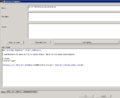
Transcript Tag in Standard Response 8.5.103
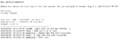
Sample Plaintext Transcript Email 8.5.103


- If the timestamp format is invalid, the default timestamp format is yyyy-MM-dd’T’HH:mm:ss, and the error message Invalid Timestamp format provided in the Chat Transcript is logged (full description in next item).
- The two error codes introduced in release 8.5.103.x are as follows:
- 30001|STANDARD|CHAT_DATE_FORMAT_PARSE_ERROR|%sInvalid Timestamp format provided in the Chat Transcript.%s
- 30002|STANDARD|CHAT_UNMARSHALL_ERROR|%sFailed to unmarshall the chat transcript XML.%s. When this error occurs, the chat transcript is not sent.
- The HTML version of the transcript e-mail can include CSS information.