Enabling Historical Reporting [DRAFT]
The following task summaries provide an overview of the steps that are required to deploy the products that provide Historical Reporting in the SIP Cluster solution. In general, there are no special steps; only a few configuration settings are specific to the Cluster deployment.
Task Summary
Deploying Interaction Concentrator and Genesys Info Mart
Plan the deployment.
For the Interaction Concentrator and Genesys Info Mart architectures that are supported for the SIP Cluster solution, see Historical Reporting Architecture.
Configure Host configuration objects.
Configure a Host configuration object for each computer on which the DB Server, ICON server, and Genesys Info Mart server applications will reside.
Unless you plan to use a DB Server that also serves another application, configure and install a DB Server for IDB storage purposes.
For performance reasons, Genesys recommends that you set up the DB Server on the same host as the RDBMS server.
In an environment with multiple IDB instances at separate sites, deploy one DB Server per IDB. In an environment with multiple IDB instances at the same site, deploying one DB Server for all IDB instances is sufficient.
Configure and install the Interaction Concentrator (ICON) application.
Settings for certain options in the callconcentrator and filter-data sections affect Genesys Info Mart and, in deployments that include it, Genesys-provided aggregation. For more information, see "Preparing ICON" in the Genesys Info Mart 8.1 Deployment Guide.
Deploying Interaction Concentrator in a Cluster environment requires some additional configuration on the Connections tab.
[+] See configuration steps
- Genesys Info Mart requires the following settings for options in the [callconcentrator] section on the ICON application object:
- use-dss-monitor=true
- calls-in-the-past=true
- om-force-adata=true
- gls-active-reason-codes=true
- partition-type=2
- role=cfg (for the Configuration details ICON)
- role=gcc,gud,gls (for the Voice details ICONs)
- Configure the Connections tab according to the instructions in the Interaction Concentrator 8.1 Deployment Guide, but making the following adjustments specific to a SIP Cluster environment:
- In a Cluster environment, configure a connection to Configuration Server Proxy instead of configuring a connection to Configuration Server.
- In a Cluster environment, add the SIP Server to which this instance of Interaction Concentrator should connect.
- After adding the SIP Server application, select it from the Connections list and click Edit.
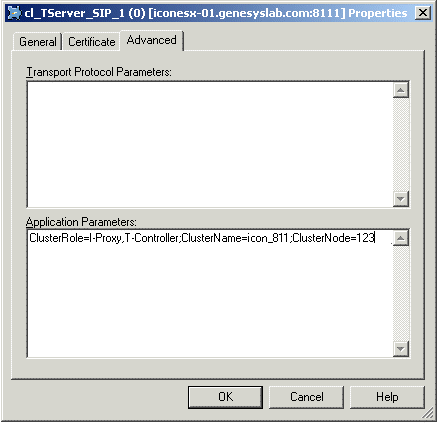
- On the Advanced tab of the Connection Info dialog box, configure the following parameters (shown in the graphic below):
- Valid Values:
- I-Proxy, T-Controller—Interaction Concentrator processes all data available from the Cluster SIP Server.
- I-Proxy—Interaction Concentrator processes only the interaction data from the Cluster SIP Server.
- T-Controller— Interaction Concentrator processes only the agent activity data from the Cluster SIP Server.
- Default Value: I-Proxy, T-Controller
- Note: The default value is the appropriate choice for the supported architecture. For details on the supported architecture, see Historical Reporting Architecture.
- ClusterName—The name of the Interaction Concentrator Application.
- ClusterNode—The DBID of the Interaction Concentrator as stored in the Configuration Layer.
- After completing Connections tab configuration, continue to Step 5 (below).
Create a new database for each IDB instance that you intend to deploy for ICON data storage.
After creating the IDBs, initialize each IDB instance, as described in "Creating IDB" in the Interaction Concentrator 8.1 Deployment Guide.
For each ICON, configure a database access point (DAP) Application object that specifies IDB connection parameters.
Follow Procedure: Configuring a DAP in the Interaction Concentrator 8.1 Deployment Guide.
Ensure that the role options that you specify for the DAP are consistent with the role options specified for the ICON instance that it serves.
Modify the attached-data specification file to enable capture and storage of the attached data that you require.
See Task Summary: Enabling Storage of User Data, below.
Ensure that all required data sources have been enabled, to identify them to Genesys Info Mart as available.
Prepare the target Genesys Info Mart database and views.
Create and configure database schemas to process and store detailed reporting data. For full information, see the sections "Preparing the Info Mart Database," "Using Database Links," and "Database Tuning" in the chapter about preparing the Info Mart database in the Genesys Info Mart 8.1 Deployment Guide.
After you have installed Genesys Info Mart, create tenant views if necessary. See the section "Creating Genesys Info Mart Read-Only
Tenant Views" in the chapter about post-installation activities in the Genesys Info Mart 8.1 Deployment Guide.
Configure the DAPs that Genesys Info Mart uses to access source and target databases.
You need DAPs for:
- Genesys Info Mart Server to access the IDBs (extraction DAPs).
- Genesys Info Mart Server to access the Info Mart database (Info Mart DAP).
- The Genesys Info Mart Administration Console to access the Info Mart database in order to monitor ETL jobs (Administration Console DAP).
For the extraction DAPs, you can reuse an existing ICON DAP. In a high availability (HA) deployment, you can also configure the geo-location option, which enables Genesys Info Mart to give preference to local IDBs for data extraction. For more information about creating new DAPs or reusing existing ones, and for information about the geo-location option, see the chapter about configuring DAPs in the Genesys Info Mart 8.1 Deployment Guide.
Configure the Genesys Info Mart Server application.
The required configuration settings depend directly on the Genesys Info Mart features that you want to implement and on your choice of an end-user reporting tool, such as Genesys Interactive Insights (GI2). For full information, see the chapter about configuring the Genesys Info Mart application in the Genesys Info Mart 8.1 Deployment Guide.
There are no special configuration requirements for the SIP Cluster solution. However, as with any deployment with distributed data centers, if you do decide to configure an optional overt connection to Configuration Server, configure the connection to Configuration Server Proxy instead of to Configuration Server.
If your deployment will include Genesys-provided aggregation, be aware that settings on the Genesys Info Mart application affect aggregation. For full information about how to configure Genesys Info Mart for aggregation, see the Reporting and Analytics Aggregates 8.x Deployment Guide.
Configure other objects (Switch, DN, Media Type Business Attribute, and Script objects) as required for use by ICON or Genesys Info Mart.
Options in the gts section (for ICON) and the gim-etl or gim-etl-media sections (for Genesys Info Mart) either do not apply in the SIP Cluster solution or else are required to have the same values as would be set in a non-SIP Cluster deployment, as described in the chapter about configuring supporting objects in the Genesys Info Mart 8.1 Deployment Guide. For example, in the case of options in the gts section on the Switch object, only the options whose area of functionality is identified as agent-related (Agent State and Login Session, Agent Metrics) apply in the SIP Cluster solution; the gls-associations-rule option, if configured, must be set to 0, and the gls-use-ts-id option, if configured, must be set to 1. There are no DN options that apply.
Prepare the Genesys Info Mart Server host.
Genesys Info Mart release 8.1.2 requires Java 1.7 JDK. For information about installing the required JDK and JDBC driver, updating system information, and setting up for the optional use of Transport Layer Security (TLS) for connections to Configuration Server Proxy and Message Server, see the section about preparing the Genesys Info Mart Server host in the chapter about installing Genesys Info Mart in the Genesys Info Mart 8.1 Deployment Guide.
Install the Genesys Info Mart application on its host.
Install the Administration Console GUI on the same host on which Configuration Manager is installed.
Note: The Administration Console host must use the Microsoft Windows operating system.
Start Genesys Info Mart.
Verify the deployment.
[+] See steps
- Review Genesys Info Mart logs to verify that the deployment is complete and configuration is correct.
- In the Genesys Info Mart Administration Console, review the status of Job_InitializeGIM to verify successful initialization of the database and successful update of the IDBs.
Create tenant-specific, read-only views on the Info Mart database.
Tenant views are strictly required only for multi-tenant deployments; however, Genesys recommends configuring read-only views for single-tenant deployments as well.
For more information, see "Creating Genesys Info Mart Read-Only Tenant Views" in the Genesys Info Mart 8.1 Deployment Guide.
Access the Administration Console, to continue managing Genesys Info Mart jobs. For information about accessing the Administration Console, see the chapter about post-installation activities in the Genesys Info Mart 8.1 Deployment Guide. For more information about how to manage jobs, see the Genesys Info Mart 8.1 Operations Guide.
(Optional) Enable aggregation (see Enabling Aggregation).
Note: This is required for GI2.
Enable data replication for Info Mart databases (see Setting Up Data Replication with Golden Gate).
Note: This is required for an environment operating under Business Continuity requirements.
Task Summary
Enabling Storage of User Data
Configure the ICON application to store user data.
Ensure that the following option values are set:
- adata-extensions-history = none (for Voice details)
- adata-reasons-history = none (for Voice details)
- adata-userdata-history = none (for Voice details)
Specify the user data that ICON will store in IDB.
[+] See steps
- Identify the key-value pairs (KVPs) from various applications that Genesys Info Mart requires for data processing.
- For call-based attached data, modify the ICON attached data specification file to capture the KVPs that you require and to control in which IDB table(s) ICON will store the data. You can use the User Data Assistant, which is included in the Genesys Info Mart installation package (IP), to prepare the customized attached data specification file. By default, ICON expects that the name of the attached data specification is ccon_adata_spec.xml. If necessary, modify the ICON adata-spec-name configuration option to match the file name that you use.
Genesys Info Mart provides a sample specification file, ccon_adata_spec_GIM_example.xml, which includes the KVPs for which storage is predefined in Genesys Info Mart.
Plan the Info Mart tables in which you want to store user data.
Identify the Info Mart fact or dimension tables in which you want user data to be stored, and map the user-data KVPs to the Info Mart tables and columns that you have identified. You can use the User Data Assistant to assist you in completing the mapping. For more information, see the "Attached Data" chapter in the Genesys Info Mart 8.1 Deployment Guide.
If you have customized the attached-data specification file, modify the Info Mart database schema to store the custom user data.
For information about creating the custom tables and columns and mapping the KVPs to them, see the procedure "Customizing the user-data template script" in the Genesys Info Mart 8.1 Deployment Guide. You can use the User Data Assistant to help you prepare the script to modify the Info Mart database schema. You execute the customized script when you create the rest of the Info Mart database schema, or when you complete the deployment after installing Genesys Info Mart.
(Optional) Enable storage of user data for interactions that are in mediation.
In the applicable ACD Queue and Virtual Queue DNs, as well as in Interaction Queue or Interaction Workbin Script objects, configure the link-msf-userdata configuration option in the gim-etl section (link-msf-userdata=true).
If necessary, turn off Genesys Info Mart filtering of user data in IDB.
By default, Genesys Info Mart filters the call-based attached data in IDB to extract KVPs that were sent in the UserData event attribute only. If you have configured the attached data specification file for ICON to store custom KVPs from the Reasons or Extensions attributes as well, turn off Genesys Info Mart filtering by setting the Genesys Info Mart filterUserData startup parameter to false. For information about changing this startup parameter, see the section "Modifying JVM Startup Parameters" in the Genesys Info Mart 8.1 Deployment Guide.
(Optional) Streamline Genesys Info Mart processing of user data.
If your historical reporting involves the use of large quantities of user data, consider increasing the value of the ud-io-parallelism option in the gim-transformation section of the Genesys Info Mart Application object.
Task Summary
Enabling Aggregation
Install the aggregation engine software—Genesys Interactive Insights (GI2) or the separate Reporting and Analytics Aggregates (RAA) package.
RAA is included as part of the GI2 installation package. If you intend to install GI2, you do not have to install RAA first.
- For full information about how to install GI2, see the Genesys Interactive Insights 8.x Deployment Guide.
- For full information about how to install the RAA package, see the Reporting and Analytics Aggregates 8.x Deployment Guide.
Verify that ICON, Genesys Info Mart, and other objects have been configured as required for aggregation.
For more information, see the Reporting and Analytics Aggregates 8.x Deployment Guide.
Configure Business Objects and create the aggregation-related database objects for GI2.
For more information, see the Genesys Interactive Insights 8.x Deployment Guide.
(Optional) Configure custom calendars.
For more information, see the procedure about creating custom calendars in the Genesys Info Mart 8.1 Deployment Guide.
Start the aggregation engine.
If you have configured the Genesys Info Mart scheduler to control the aggregation process (run-aggregates=true), the aggregation job will start automatically at the scheduled time (as specified by aggregate-schedule).
- For full information about how to start the aggregation engine, see the Reporting and Analytics Aggregates 8.x Deployment Guide.
- For more information about how to schedule and manage the aggregation job in Genesys Info Mart, see the Genesys Info Mart 8.1 Operations Guide.

