
Control Your ACD Agent State from SIP Phones
Agents can change their ACD Agent State using enabled desk phones made by Polycom, Yealink and AudioCodes/Genesys (420HD model with firmware version 2.2.2 or higher only). Here's how.
Agents: Change your ACD state from a desk phone
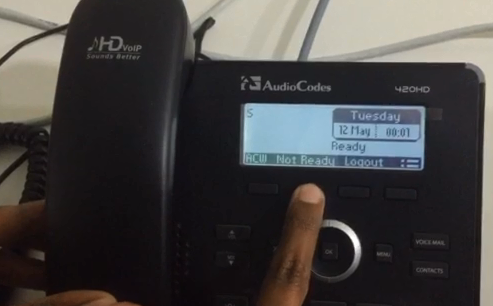
Watch an agent change his ACD code on an AudioCodes 420HD desktop phone:
|
xxxxxx |
Note: You can still do this on your desktop computer, using Agent Desktop. SIP Server synchronizes between your phone and your Agent Desktop when you finish using either tool. |
xxxxxxxxxxxxx |
SysAdmin Configuration Required to Enable
This task enables remote ACD State change on Polycom, Yealink and AudioCodes/Genesys model 420HD desktop phones.
This task requires system administration-level skills.
- Create a profile.
- Enable ACD in the profile, and add reason codes.
- Create a device and associate the profile with it.
When an enabled phone connects to Feature Server, login and provisioning becomes available automatically.
Comments or questions about this documentation? Contact us for support!