
Language Locales
Composer 8.1.430.06 supports French Canadian localization. To display the Composer interface in French Canadian:
- Select Help > Install New Software. (The Available Software dialog box adds the new option for Composer Language Locales, which is not shown in the installation video).
- In the Available Software dialog box, click Add.
- In the Add Repository dialog box, enter Composer and click Archive.
- Navigate to the folder where com.genesyslab.composer.updateSite.zip is located and select it.
- Click Open and then OK.
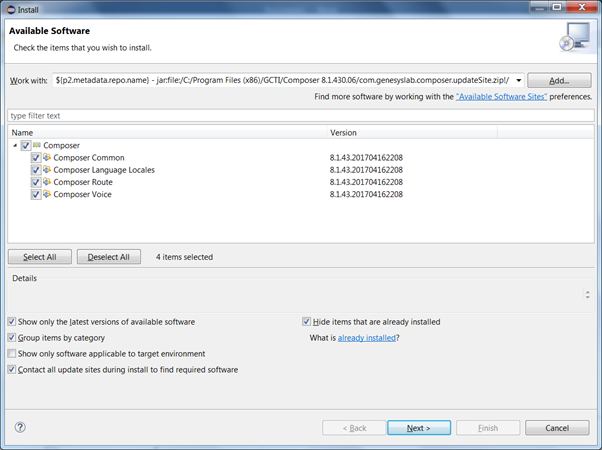
- Under Name in the Available Software dialog box, expand Composer, check all the four plugin options including Composer Language Locales and click Next.
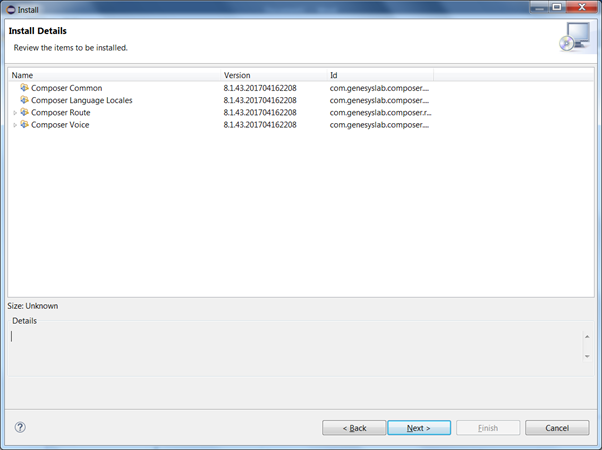
- Review that all four plugins are selected to get installed and click Next.
- Accept the License Agreement and click Finish.
- Restart Eclipse to get a workspace metadata update.
- After installation, by default the Java VM default language will be used. The Eclipse UI language can be configured by one of the following options:
- Adding the -nl option at the top of the eclipse.ini file (new line for the value is must).
-nl
fr_CA
- (OR) using --Duser.language=fr_CA under the -vm options in the eclipse.ini file.


Tip
If you do not have permission to save an edit to eclipse.ini when that file is located in a "Programs" folder, Eclipse can be installed in another folder. Composer installation prompts for the Eclipse path.
Comments or questions about this documentation? Contact us for support!