
Revision as of 08:25, June 29, 2020 by Peter Chaplin (talk | contribs)
Contents
Working with QL queries
Saving QL queries
You can save frequently used QL queries for later use. To save an executed query:
- Type a valid QL query in the input field and click the Save button.
- In the dialog box that displays, enter a name for the query:
- Check the Public checkbox to make the filter public


You can access the saved filter from the filter selector:

Important
- The query text cannot be changed in the dialog box. Only the name and Public status can be changed.
- You can apply either Visual Filters or saved Query Filters at one time, but not both.
Form fields
| Field name | Description |
|---|---|
| Custom filter name | The filter name is case sensitive and unique per tenant. |
| Query text | Uneditable text taken from search input. |
| Public | When checked, the query filter is shared with other users in the same tenant. |
Editing QL queries
A saved query can be edited later.
To edit the filter's query text:
- Display the query filter you want to change.
- Click in the search query field at the top of the screen, make your edits, then click the Save button.
- This displays the modify dialog:
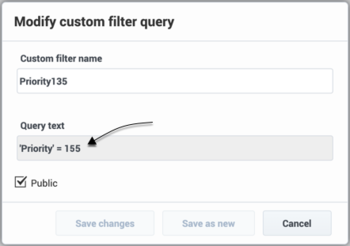
- You can optionally choose to edit the name or public status of the filter in the dialog box that displays.
- Save the changes in the current filter or save them as a new query filter.

To edit only the name and publicity status of a filter:
- Select the query filter you want to change and click its pen icon.
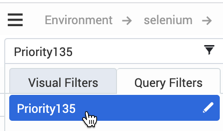
- This displays the modify dialog:
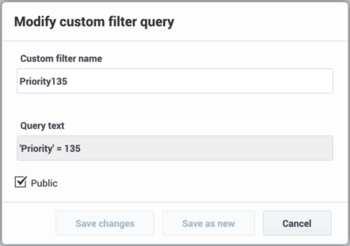
- Save the changes in the current filter or save them as a new query filter.


Deleting QL queries
Comments or questions about this documentation? Contact us for support!