
Using the Plug-in for GAX

|
The Web Engagement Plug-in for Genesys Administrator extension includes two tools used in the creation of your web engagement application. Basic usage of this tool is described in:
The following page provides detailed information about these tools. |
Plug-in Description
Once installed, as detailed here, the Genesys Web Engagement Plug-in for Administrator Extension adds the Web Engagement section to the CONFIGURATION menu of the Genesys Administrator Extension.

The plug-in provides two tools, used in Web Engagement developments:
- Categories, used to create categories used for tagging browser events;
- Script Generator, used to create JavaScript Tracking code, to add to your webpages.
Script Generator
Script Generator creates the JavaScript Tracking code with mandatory information to enable tracking on your website. You enter configuration information and the tool generates a basic JavaScript code snippet. As specified in Enable Monitoring, you must add this JavaScript code snippet to your webpages, at the end of the <head> section of your HTML.
Generate a New Script
To create a new script, you must open the Script Generator interface, available in the CONFIGURATION > Script Generator menu of the Genesys Administrator Extension.
Then, enter configuration information, as described in Enable Monitoring and click Generate.

The JavaScript Tracking code uses the _gt (Genesys Tracker) object which submits information asynchronously to ensure that information is submitted to the Web Engagement Frontend server before the users leave the webpages. The _gt (Genesys Tracker) object behaves like a FIFO (First In, First Out) collecting the API calls until the GTC.js library is ready to execute them. This enables you to add events to the queue if you wish to submit information with the Monitoring API, by using the _gt.push() method. See Documentation:GWE:API:Monitoring JavaScript for further details on event submission.
Note: Additional scripts should be placed at the end of the <body> section of your HTML page.
Customizable Parameters
The following table provide details about the possible fields available to customize your Tracking Script.
| Parameter | Type | Default value | Mandatory | Description |
|---|---|---|---|---|
| name | String | no | yes | Name of the application; for instance, genesyslab.
|
| domainName | String | <current domain name> | yes | Name of the domain where the cookie is stored; for instance, genesyslab.com.
|
| dslResource | String | no | yes | DSL resource location via HTTP; for instance, http://genesyslab.com:8081/frontend/resources/dsl/domain-model.xml
|
| secureDslResource | String | no | no | DSL resource location via HTTPS; for instance, https://genesyslab.com:8443/frontend/resources/dsl/domain-model.xml
|
| httpEndpoint | String | no | yes | URL of the Frontend Server; for instance, http://genesyslab.com:8081
|
| httpsEndpoint | String | no | no | Secured URL of the Frontend Server; for instance, https://genesyslab.com:8443
|
| jQueryAutoDetect | BOOL | true | no | Set this option to true to detect the loading of the jQuery library loading and to load automatically this library if there is no jQuery library available on the current page. |
| jQueryPath | String | ajax.googleapis.com/ajax/libs/
|
no | URL for the jQuery library if jQueryAutoDetect is set to true; for instance, genesyslab.com/js/jquery.min.js.
|
| languageCode | String | en-US | no | Localisation tag for language and region; for instance, en-US.
|
| mobile | BOOL | false | no | Set to true if the monitored website is designed for mobile devices. |
| debug | BOOL | false | no | Set to true to show the Monitoring's debug information in the console. |
| debugComet | BOOL | false | no | Set to true to show the cometd debug information in the console. |
| useSecureUserDataSend | BOOL | true | no | Set to true to send all user information (SignIn and UserInfo events) via HTTPS. |
Script Examples
This is the default script generated for the Genesyslab example.
<script>
    var _gt = _gt || [];
    _gt.push(['config', {
        'name':         'genesyslab ',
        'domainName' :  'genesyslab .com',
        'dslResource':      'http://genesyslab.com:8081/frontend/resources/dsl/domain-model.xml',
        'secureDslResource':    'https://genesyslab.com:8443/frontend/resources/dsl/domain-model.xml',
        'httpEndpoint':             'http://genesyslab.com:8081',
        'httpsEndpoint':    'https://genesyslab.com:8443'}]);
    (function() {
        var gt = document.createElement('script'); gt.type = 'text/javascript'; gt.async = true;
        gt.src = (  'https:' == document.location.protocol ? 'https://genesyslab.com' :
                    'http://genesyslab.com') + '/frontend/GTC.js';
        var gts = document.getElementsByTagName('script')[0]; gts.parentNode.insertBefore(gt, gts);
    })();
</script>
This is an extended script generated for the Genesyslab example.
<script>
    var _gt = _gt || [];
    _gt.push(['config', {
        'name':             'genesyslab,
        'domainName' :      'genesyslab.com',
        'languageCode':         'en-US',
        'mobile':           false,
        'dslResource':          'http://genesyslab.com:8081/frontend/resources/dsl/domain-model.xml',
        'secureDslResource':        'https://genesyslab.com:8443/frontend/resources/dsl/domain-model.xml',
        'httpEndpoint':                 'http://genesyslab.com:8081',
        'httpsEndpoint':            'https://genesyslab.com:8443',
        'debug':            true,
        'jQueryAutoDetect':         true,
        'jQueryPath':           'ajax.googleapis.com/ajax/libs/jquery/1.8.3/jquery.min.js'
        'languageCode':     'en-US',
        'mobile':           true,
        'debug':            true,
        'debugComet':           true,
        'useSecureUserDataSend':    true,
        }]);
    (function() {
        var gt = document.createElement('script'); gt.type = 'text/javascript'; gt.async = true;
        gt.src = 'http://genesyslab.com:8070/tracker/GTC.js';
        var gts = document.getElementsByTagName('script')[0]; gts.parentNode.insertBefore(gt, gts);
    })();
</script>
Categories
The Categories interface is a tool for creating the categories used in the Category-based model for engagement. Each category is compliant with the category definition and include tags to define business information related to your website. See the category definition for further details.
To access the Categories interface, open Genesys Administrator Extension and navigate to CONFIGURATION > Categories.

Main Features
The main features are the following:
- Create categories and matching tags; instructions are available in Creating Categories
- Delete matching tags and categories:
- To delete a tag, select the tag in the Category Matching Tag section and click the x button.
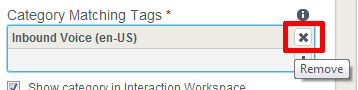 click the Remove button.
- To delete a category, select the category in the list and click the Delete button. the Delete Confirmation dialog opens. Click OK.
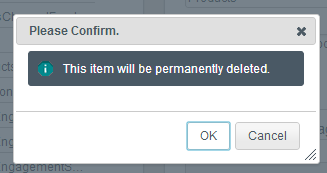 Delete Confirmation.
- To delete a tag, select the tag in the Category Matching Tag section and click the x button.


Note: Categories are also displayed in the Configuration Manager. You should not edit or delete them through the Configuration Manager, to avoid synchronization issues with the Categories interface.
Regular Expressions in Tags
A regular expression is a sequence of elements. An element is either a word or expression inside quotes. Each search element can be preceded by exclusion '-'. The Search Request is case sensitive. A wildcard symbols '*' can be used inside or out the quotes. This symbol means any symbol in the regular expression.
Search Request Usage
A Search Request is applied to a text line. Each word included in the search can be surrounded in any number of symbols. All expressions inside the quotes will be copied to the resulting Regular Expression without any changes. The search in the line can be successful or not. The search is successful if all elements without exclusion symbol are included to the text line. Otherwise, the search is unsuccessful.
Search Request Patterns
The following table describes the patterns in search requests.
| Search Options | Description |
|---|---|
| Search for all exact words in any order. search query |
The result must include all the words. These words can be substrings attached to other words—for example, [Web-search query1]. |
| Search for an exact word or phrase. "search query" |
Use quotes to search for an exact word or set of words in a specific order without normal improvements such as spelling corrections and synonyms. This option is handy when searching for song lyrics or a line from literature—for example, ["imagine all the people"]. |
| Exclude a word. -query |
Add a dash (-) before a word to exclude all results that include that word. This is especially useful for synonyms like Jaguar the car brand and jaguar the animal. For example, [jaguar speed -car]. |
| Include "fill in the blank". query *query |
Use an asterisk (*) within a query as a placeholder for any terms. Use with quotation marks to find variations of that exact phrase or to remember words in the middle of a phrase. For example, ["a * saved is a * earned"]. |
Option
Option 'Mode' that is one of the input parameters equals 0, if the compilation function works as described above. 'Mode'= 1 switches to regime where all double-quotes considered as a regular symbols. It means that they no more serve as brackets of substrings to be searched. Checking of even number of double-quotes is also removed.
Compilation Result
The compilation procedure should transform the Search Request to the equivalent Regular Expression. It returns an empty string, if search request is incorrect.