Contact center settings
A key factor in a well-configured contact center is how well the global contact centers are configured. This very important task ensures that your customers are routed to the correct agents and that the agents have the correct tools available to them as they handle customer interactions.
On the various screens, you select the check boxes next to the options that you want to enable. Each check box has three states:
 The option is inactive. To activate the option, click the check box once. The option is then set to the default setting as specified in the description in the tool tip.
 A check mark indicates that the option is enabled. You can click once to disable the option.
 No check mark indicates that the option is disabled. You can click once to enable the option.
After you configure all your objects, such as skills, dispositions, agent states, you can easily manage user accounts, because all the correct options will be available to you.
Skills
On the Contact Center > Manage Skills page, you can add and delete skills, as well as organize the skills into folders. Skills are an agent's knowledge of a particular subject that might be required in an interaction, such as language skills. They can also be used for routing purposes.
To add a skill:
- Click Add.
- Type a name in the Name field.
You can organize skills into folders. If needed, you click the add folder icon  to create a new folder.
Desktop Options
To configure desktop options, click Contact Center Settings > Desktop Options. On the Desktop Options page, you can select the channels and other options that are available to all agents and users in your contact center.
The options on the Desktop Options page are organized into sections. Click the links below to view an image and option descriptions for each section.
[+] Click to show Channel options
Channels
The choices that you make in the Channels section are not automatically applied to all agents and users. Your selection provides a set of channels that you choose from when you add an agent. For example, you can select Voice, Chat, E-mail, Workbins, and Outbound for the contact center. Then when you add an agent or edit an agent, you can configure the individual agent to only have access to only the Voice channel.
[+] Click to show Global Login options
Global Login
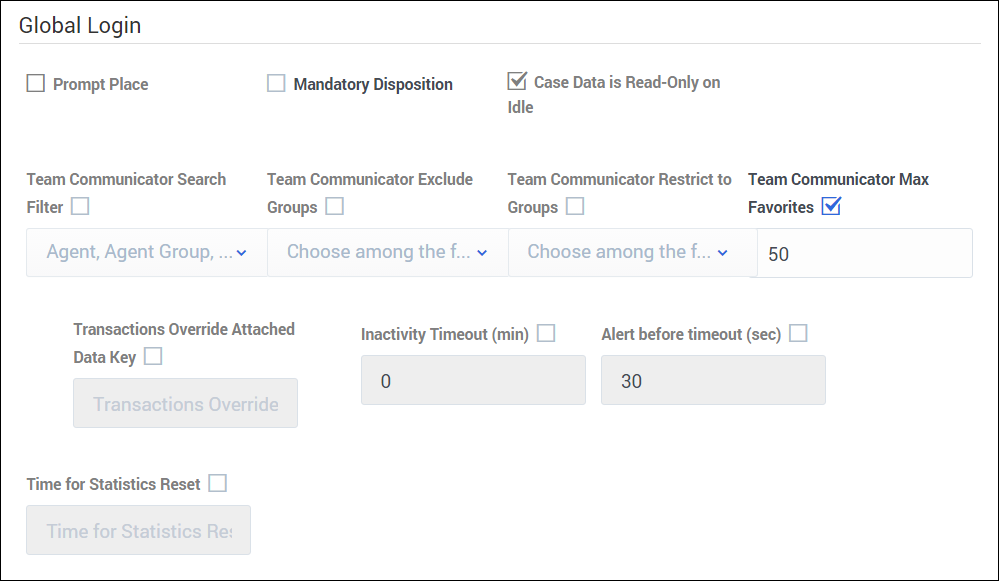
In the Global Login section, configure the following settings:
- Prompt Place requires the agent to specify a place when they log in.
- Mandatory Disposition specifies whether it is mandatory for the agent to select a disposition before marking an interaction as done.
- Case Data is Read-Only on Idle prevents agents from making edits to case data after the interaction is complete. Any changes made to case data after the interaction ends and the agent clicks Mark Done is logged as a user event log entry.
- Team Communicator Search Filter specifies the list of filters that an agent can use to search for contacts and internal targets in the Team Communicator. When you select this option, all filters are enabled by default. To customize the filters, click the drop-down list box and deselect the filters that you don't want to include.
- Team Communicator Exclude Groups allows you to exclude agent groups from being displayed in the Team Communictor, Favorites, and Statistics. After you select this option, click the drop-down list box to select the groups that you want to exclude.
- Team Communicator Restrict to Groups allows you to specify which agents groups you want to be visible in the Team Communictor, Favorites, and Statistics. After you select this option, click the drop-down list box to select the groups that you want to be displayed.
- Team Communicator Max Favorites specifies the maximum size of the favorites list displayed in the Team Communictor.
- Transaction Override Attached Data Key: In Agent Desktop, you can override desktop options by setting a key value to the name of a transaction list object. When you set the value of the identified key to the name of the transaction list object, desktop options in the transaction list object are used instead of the WWE application or agent group objects.
- Inactivity Timeout(min) specifies the number of minutes of agent inactivity (no mouse or keyboard usage) that triggers application locking. If the agent has been inactive longer than the number of minutes this option, the agent session is ended.
- Alert before timeout(sec) specifies the number of seconds that pass before the inactivity alert is sent to the agent.
- Time for Statistics Reset specifieds type the time that you want agent and call center statistics to be reset reset in Agent Desktop. Indicate the time using UTC time in 24-h format. For example, PDT midnight is 7AM in UTC and should be specified as 7:00.
[+] Click to show Supervisor options
Supervisor options
In the Supervisor section, you can configure the following settings:
- Monitor enables supervisor and team lead monitoring on agent interactions.
- Agent Control allows the supervisor or team lead to access the My Agents view.
- Agent Channels defines the channels to be displayed in the My Agents view.
- Monitor Current Voice allows the supervisor or team lead to monitor voice interactions.
- Coach Current Voice allows the supervisor or team lead to coach voice interactions.
- Show Voice Monitoring enables agents to be notified when the current call is being monitored by a supervisor or team lead.
- Cross Site Voice Monitoring allows the supervisor or team lead to perform supervision of an agent that is located at a different location.
- Monitor Chat allows the supervisor or team lead to monitor chat interactions.
- Coach Chat allows the supervisor or team lead to coach chat interactions.
[+] Click to show Voice options
Voice
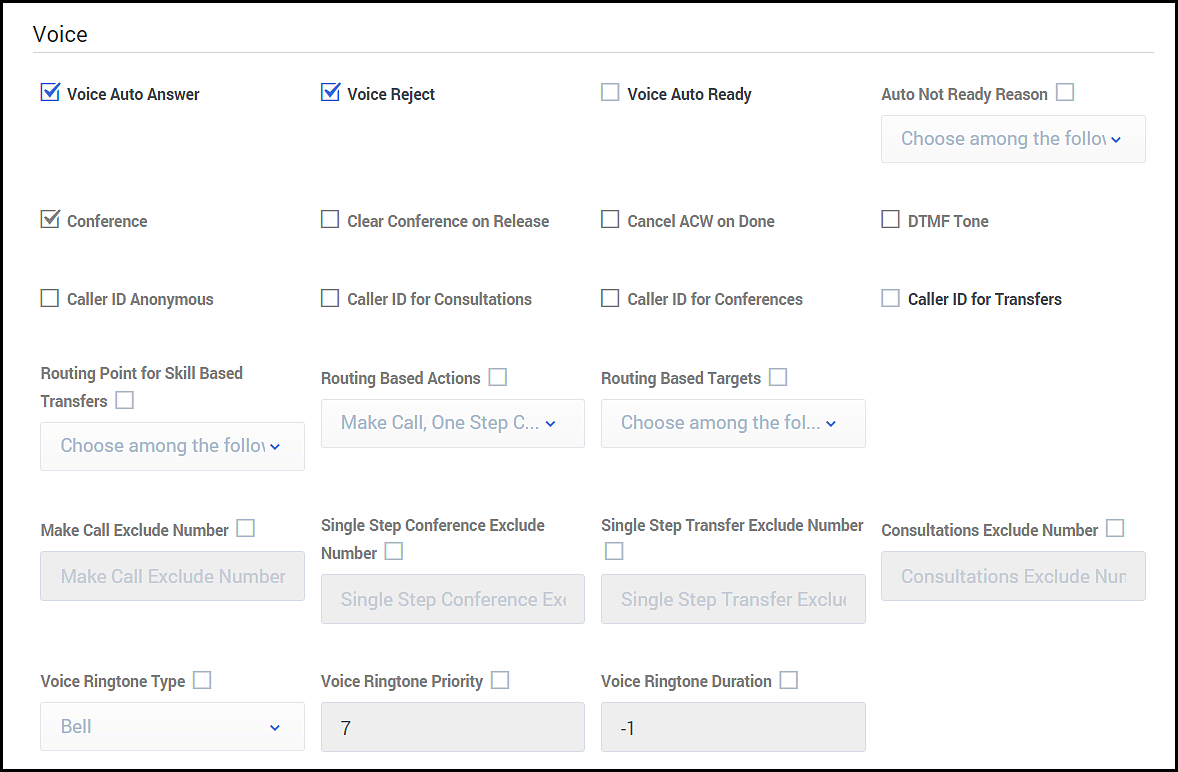
In the Voice section, configure the following options:
- Voice Auto Answer specifies that voice interactions are automatically answered when an agent receives the invitation.
- Voice Reject enables agents to reject incoming calls.
- Voice Auto Ready places the agent in the Ready state as soon as they log in.
- Auto Not Ready Reason places the agent in Not Ready state as soon as they log in. When you select this option, define the default Not Ready reason code.
- Conference enables one-step voice conferencing.
- Clear Conference on Release clears a conference call of all parties when the last agent leaves the conference call.
- Cancel ACW on Done specifies that the voice channel is to be returned to the agent's former availability status when the agent marks the voice interaction as Done while in After Call Work status.
- DTMF Tone specifies to play a tone when the agent select a key.
- Caller ID Anonymous specifies whether the anonymous Caller ID is enabled. This option applies to only outbound calls.
- Caller ID for Consultations enables agents to use a Caller ID for consultations.
- Caller ID for Conferences enables agents to use a Caller ID for single-step conferences.
- Caller ID for Transfers enables agents to use a Caller ID for single-step transfers.
- Routing Point for Skill Based Transfers specifies the call number used by the Routing Point feature.
- Routing Based Actions defines the list of routing-based actions that an agent can perform. Options include:
- Make Call
- One Step Conference
- Initiate Conference
- One step Transfer
- Initiate Transfer
- Options to exclude a range of numbers from the Team Communicator. For each option, if you enable it, you must type a regular expression (RegEx) to match against the following items:
- Entered phone number
- Selected agent or routing point
- For example, to exclude extensions that are 7 digits and start with the numbers 7 or 8, type ^(7|8)\d{6}$
- Make Call Exclude Number specifies the format for a phone number to exclude from Team Communicator when making a call.
- Single Step Conference Exclude Number specifies the format for a phone number to exclude from Team Communicator on a single step conference.
- Single Step Transfer Exclude Number specifies the format for a phone number to exclude from Team Communicator on a single-step transfer.
- Consultations Exclude Number specifies the format for a phone number to exclude from Team Communicator on consultation.
- These options are not applicable to global or personal favorites.
- Voice Ringtone Type specifies the voice ringtone type. Enable the option and then select the ringtone type from the drop-down list box.
- Voice Ringtone Priority specifies the priority level of the voice ringtone within the channels. Enable the option and then type the number for the priority level.
- Voice Ringtone Duration specifies how long the ringtone rings. Use the following values:
- -1 specifies to repeat the ringtone until the call is answered.
- 0 specifies to play the ringtone only one time.
- 1 or more specifies to play the ringtone for the specified duration (in milliseconds) and then repeat until the call is answered.
[+] Click to show Chat options
Chat
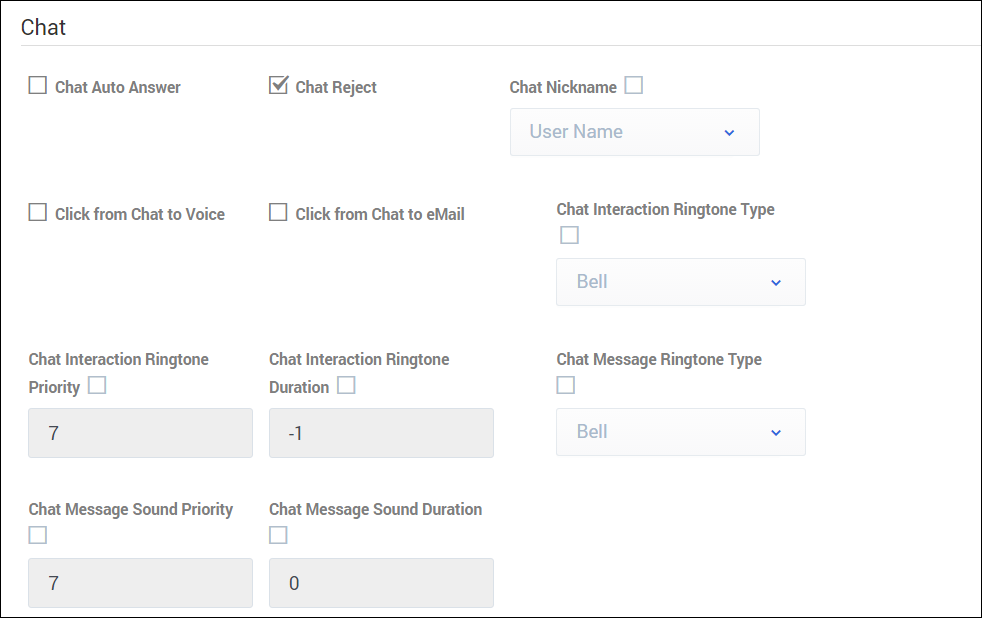
In the Chat section, configure the following options:
- Chat Auto Answer specifies that chat interactions are automatically answered when an agent receives the invitation.
- Chat Reject enables agents to reject incoming chats.
- Chat Nickname specifies the nickname that is displayed on the chat window in interactions. Type one the following syntax options:
- $Agent.UserName$ to display full username.
- $Agent.LastName$ to display only last name.
- $Agent.FirstName$ to display only first name.
- $Agent.FullName$ to display full name.
- $Agent.EmployeeId$ to display employee ID.
- Click from Chat to Voice enables users to initiate a voice interaction by clicking a phone number in a chat transcript.
- Click from Chat to eMail enables users to initiate an email by clicking an email address in a chat transcript.
- Chat Interaction Ringtone Type specifies the chat ringtone type. Enable the option and then select the ringtone type from the drop-down list box.
- Chat Interaction Ringtone Priority specifies the priority level of the chat ringtone within the channels. Enable the option and then type the number for the priority level.
- Chat Interaction Ringtone Duration specifies how long the ringtone rings. Use the following values:
- -1 specifies to repeat the ringtone until the chat is answered.
- 0 specifies to play the ringtone only one time.
- 1 or more specifies to play the ringtone for the specified duration (in milliseconds) and then repeat until the chat is answered.
- Chat Message Ringtone Type specifies the chat message ringtone type. Enable the option and then select the ringtone type from the drop-down list box.
- Chat Message Ringtone Priority specifies the priority level of the chat message ringtone within the channels. Enable the option and then type the number for the priority level.
- Chat Message Ringtone Duration specifies how long the ringtone rings. Use the following values:
- -1 specifies to repeat the ringtone until the chat message is read.
- 0 specifies to play the ringtone only one time.
- 1 or more specifies to play the ringtone for the specified duration (in milliseconds) and then repeat until the chat message is read.
[+] Click to show Email options
Email
In the Email section, configure the following options:
- Email Auto Answer specifies that email interactions are automatically answered when an agent receives the invitation.
- Email Forward allows agents to forward emails to another agent.
- Email Interaction Ringtone Type specifies the email ringtone type. Enable the option and then select the ringtone type from the drop-down list box.
- Email Interaction Ringtone Priority specifies the priority level of the email message ringtone within the channels. Enable the option and then type the number for the priority level.
- Email Interaction Ringtone Duration specifies how long the ringtone rings. Use the following values:
- -1 specifies to repeat the ringtone until the email message is read.
- 0 specifies to play the ringtone only one time.
- 1 or more specifies to play the ringtone for the specified duration (in milliseconds) and then repeat until the email message is read.
[+] Click to show Recording options
Recording
In the Recording section, configure the following options:
- Call Recording sets the agent's desktop to record all voice interactions.
- Screen Recording sets the agent's desktop to record all screen interactions.
[+] Click to show Contact options
Contact
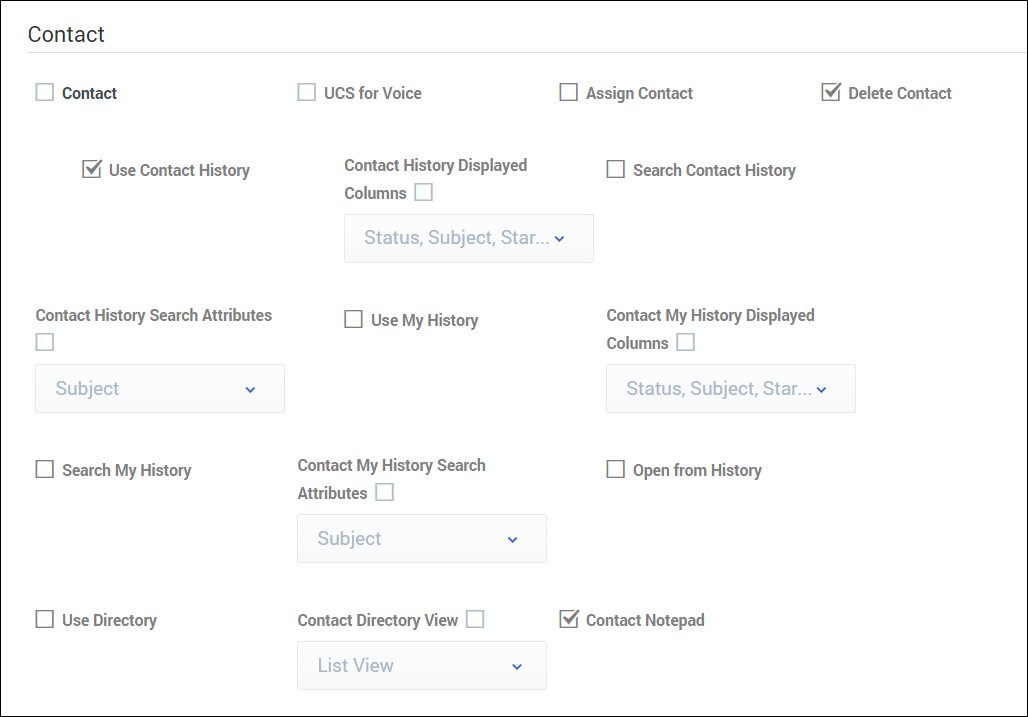
In the Contact section, you can enable the following options:
- Contact enables agents to access contact features.
- UCS for Voice enables the Universal Contact Server to generate voice interaction history in Agent Desktop. This option is enabled when the Contact and Voice check boxes are selected.
- Assign Contact enables agents to assign contacts to an interaction. This option is enabled when the Contact check box is selected.
- Delete Contact enables agents to delete contacts.
- Use Contact History enables agents to access contact history. This option is enabled when the Contact check box is selected.
- Contact History Display Columns allows you to manage the interaction attributes you want to display in the Contact History view in Agent Desktop. This option is enabled when the Contact and Use Contact History check boxes are selected.
- Search Contact History enables agents to search contact history. This option is enabled when the Contact and Use Contact History check boxes are selected.
- Contact History Quick Search Attributes allows you to manage the interaction attributes you want to display in the Contact History Quick Search view in Agent Desktop. This option is enabled when the Contact, Use Contact History, and Search Contact History check boxes are selected.
- Use My History enables agents to access their own contact history. This option is enabled when the Contact check box is selected.
- Contact My History Displayed Columns allows you to manage the interaction attributes you want to display in the My History view in Agent Desktop. This option is enabled when the Contact and Use My History check boxes are selected.
- Search My History enables agents to search their own contact history. This option is enabled when the Contact check box is selected.
- Contact My History Search Attributes allows you to manage the interaction attributes you want to display in the My History Quick Search view in Agent Desktop. This option is enabled when the Contact, Search My History, and Search My History check boxes are selected.
- Open from History allows agents to open in-progress emails from the iteraction history. This option is enabled when the Contact and Email check boxes are selected.
- Use Directory enables agents to view and search the contact directory. This option is enabled when the Contact check box is selected.
- Contact Directory View specifies the format for the Contact History View. Options include List View or Grid View. This option is enabled when the Contact check box is selected.
- Contact Notepad allows an agent to display and edit notes while handling an interaction. The notepad is a feature that enables agents to enter comments about the current interaction or about a selected interaction. Agents can view the note in most channels as well as contact history, My History, and My Workbin.
[+] Click to show Standard Response Library options
Standard Response Library
In the Standard Response Library section, you can enable or disable the . You can also apply a filter to specify what response categories are available to the agent in Agent Desktop.
[+] Click to show Feedback options
Feedback
In the Feedback section, you can enable the following options:
- Feedback enables the Feedback icon to be displayed on the About dialog box.
- Feedback after disconnect enables the Feedback dialog box to be displayed when a user's browser unexpectedly disconnects. The Feedback dialog box is displayed when the user logs back in.
- Feedback Max Length specifies how many characters are accepted in the Feedback dialog box.
How feedback works?
When Agent Desktop or Gplus Adapter doesn't work as expected, Genesys recommends that agents report the incident in the following ways:
- Use the Feedback options to capture logs and details about what the agent was doing in their most recent Agent Desktop or Gplus Adapter session. These logs are sent directly to Genesys and are available to Customer Care for later reference. To provide feedback reports to Genesys, depending on what you enable in the Feedback section of the Desktop Options page, agents can use either the:
- Feedback option on the Help menu
- Feedback dialog box that is displayed after the web browser unexpectedly disconnects and reconnects
- Afterwards, report the incident to their direct supervisor or administrator in person, following your organization's reporting policies and procedures.
When an agent reports an issue to a supervisor or administrator, that person should contact Genesys Customer Care as soon as possible to provide the reporting user's name and DN at the time of the incident, as well as the approximate time the incident occurred. At this point, the Customer Care agent should be able to retrieve the relevant logs that were sent through the Feedback options to determine what the issue might have been.
CRM Adapter
To configure CRM Adapter options, click Contact Center Settings > CRM Adapter. On the CRM Adapter page, you can configure the Gplus Adapter.
The options on the CRM Adapter page are organized into sections. Click the links below to view an image and option descriptions for each section.
[+] Click to show Provisioning options
Provisioning
In the Provisioning Options section, configure the following options:
- Click to Dial Preprocessing Rules specifies the preprocessing rules to apply to the phone number before making a dial request. When you enable this option, you can choose the default preprocessing rules or add a rule. If you add a rule, you will need to define a Display Name for the rule and define the RegEx, Prefix, and Description.
- Add contacts in UCS specifies whether the agent can add contacts to the Contact Database.
- Call Recording specifies whether the agent can record calls.
[+] Click to show Feedback options
Feedback
In the Feedback section, configure the following options:
- Feedback specifies whether to show the Feedback option in the main menu.
- Feedback After Disconnect controls how the adapter handles the submission of feedback logs after the adapter is disconnected unexpectedly. When set to Always, the adapter always submits feedback logs without asking the agent. When set to Prompt, the agent is prompted to allow the adapter to submit feedback logs. When set to Never, no feedback logs are submitted.
How feedback works?
When Gplus Adapter doesn't work as expected, Genesys recommends that agents report the incident in the following ways:
- Use the Feedback options to capture logs and details about what the agent was doing in their most recent Gplus Adapter session. These logs are sent directly to Genesys and are available to Customer Care for later reference. To provide feedback reports to Genesys, depending on what you enable in the Feedback section of the Desktop Options page, agents can use either the:
- Feedback option on the Help menu
- Feedback dialog box that is displayed after the web browser unexpectedly disconnects and reconnects
- Afterwards, report the incident to their direct supervisor or administrator in person, following your organization's reporting policies and procedures.
When an agent reports an issue to a supervisor or administrator, that person should contact Genesys Customer Care as soon as possible to provide the reporting user's name and DN at the time of the incident, as well as the approximate time the incident occurred. At this point, the Customer Care agent should be able to retrieve the relevant logs that were sent through the Feedback options to determine what the issue might have been.
[+] Click to show Interaction options
Interaction
In the Interaction section, configure the following options:
- Advanced Case Data View specifies whether the adapter should use the advanced case data view that supports editing, links, and ordering.
- Hide Disposition hides the Disposition section in the voice detail view.
[+] Click to show Screen Pop options
Screen Pop
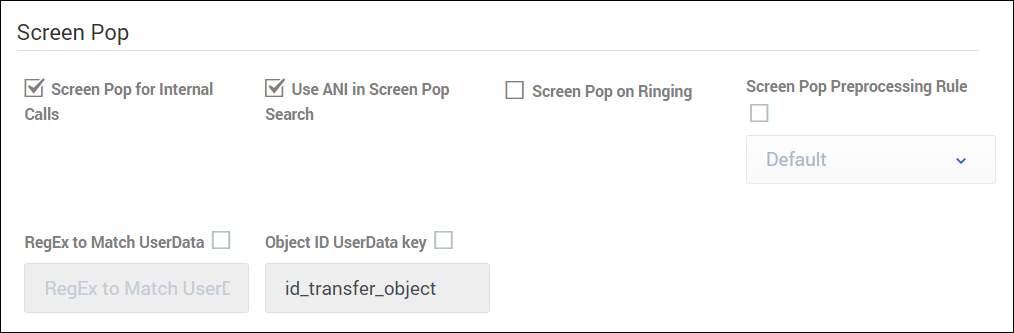
In the Screen Pop section, configure the following options:
- Screen Pop for Internal Calls specifies whether the adapter initiates a screen pop for internal calls.
- Use ANI in Screen Pop Search specifies whether is to be used in the screen pop search.
- Screen Pop on Ringing specifies whether the adapter initiates a screen pop when the call is ringing. If not enabled, or set to False, the adapter initiates a screen pop when the call is established.
- Screen Pop Preprocessing Rule specifies the preprocessing rule to apply to the ANI before showing the screen pop. When you enable this option, you can choose the default preprocessing rules or add a rule. If you add a rule, you will need to define a Display Name for the rule and define the RegEx, Prefix, and Description.
- RegEx to Match UserData specifies a regular expression pattern used to match one or more UserData keys. The values for these keys are used to build the search and screen pop expression. If this option is not defined, the adapter uses the existing cti_ prefix logic.
- Object ID UserData key specifies the custom UserData key that the adapter should use for the object ID of the focused page when performing a transfer.
[+] Click to show Salesforce options
Salesforce
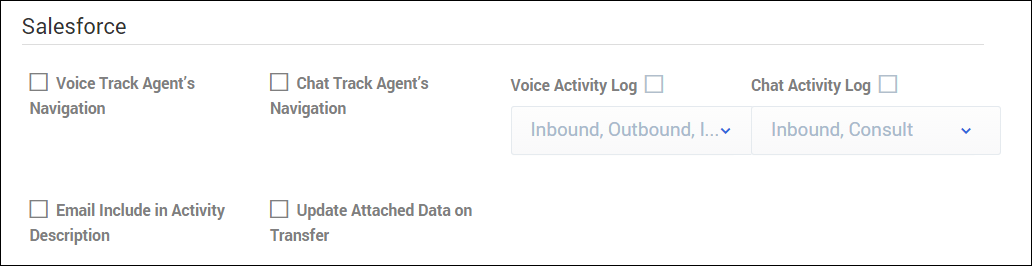
In the Salesforce section, configure the following options:
- Voice Track Agent's Navigation specifies whether to track the agent's navigation through various Salesforce objects, such as Contacts, Accounts, and Tasks, while the agent is processing voice interactions.This option is only available for Salesforce Console mode. When this option is set to True, agents can select an object from the Object Association menu on the Mark Done screen. This option is disabled when the Case Data is Read-Only on Idle option is enabled.
- Chat Track Agent's Navigation specifies whether to track the agent's navigation through various Salesforce objects, such as Contacts, Accounts, and Tasks, while the agent is processing chat interactions. This option is only available for Salesforce Console mode. When this option is set to True, agents can select an object from the Object Association menu on the Mark Done screen. This option is disabled when the Case Data is Read-Only on Idle option is enabled.
- Voice Activity Log specifies the call types for the adapter to create in the activity history for Salesforce.
- Chat Activity Log specifies the chat types for the adapter to create in the activity history for Salesforce.
- Email Include in Activity Description specifies to include the text version of the email body in the activity description in Salesforce. The email body is saved for only inbound emails and outbound replies.
- Update Attached Data on Transfer specifies whether to update the call data with the ID of the Saleforce object the agent is viewing when performing a transfer or conference. When set to True, the agent that receives the voice or chat interaction gets a screen pop for the most relevant object.
Agent groups
An Agent Group is a logical grouping of agents. Agent groups are typically set up to provide particular sets of contact-center services. The Agent Groups list shows the agent groups that are in your environment. You have two options for creating agent groups:
- Create an Agent group and then manually add agents to the group. For example, if you want to create an agent group for a group of new hires, you create the agent group, and then manually add each of the new hire's agent accounts to the group.
- Create a Virtual Agent Groups to automically group agents, according to the skills that they have. You create an agent group object and define a script to identify the skills that you want the agents in the group to share. For example, you can create a virtual agent group for all agents that can speak Russian.
Both types of agent groups are configurable on the Agent Groups screen on the Contact Center Settings page. Use the following procedures create and configure your agents groups:
[+] Creating an agent group
Creating an agent group
In the Agent Groups window, type the name you want to assign to the agent group and click Add. In our example, the new agent group is a group new hires, so let's name the agent group November2016 New Agents.
You can put the new agent group into folder. This is useful for organizing your agent groups to make them easy to locate in the future. For example, you can place our new group into the Training Groups folder. When you select the Folder option, a drop-down list box is displayed where you can select a folder or click the add folder icon to create a new folder.
After you click Add, the new agent group is listed on the Agents Group page. Select the agent group you just created. Note that there are two lists:
- All Agents lists all agents in your call center.
- Agents Groups Agent lists all agents in this particular agent group. For each agent that you want to add, click the agent row in the All Agents list and drag it to the Agents Groups Agent list.
Tip
On your agent group list, you might see agent groups that have an
Add script link in the script column. If you see this, it means that you or someone else created an agent group and didn't assign any agents to it. In other words, it's an empty group. You have the option to edit the group to manually add agents or click
Add script to create a virtual agent group.
<toggledisplay linkstyle font-size:larger showtext="[+] Creating a virtual Agent group" hidetext="[-] Hide">
You can create a virtual agent group by specifying a script when you add an agent group.
As opposed to a regular agent group, you can't manually add agents to a virtual agent group. Agents are automatically included in the group if the agent is assigned the skill that is specified in the script.
After you add the script, you will see a link in the Script column on the Agent Groups page.. The script identifies the common skills shared by all agents that belong to the group. you can edit the script by double-clicking the script text and then updating the script in the dialog box that is displayed.
[+] Configuring the desktop for an agent group
After you populate your agent group with agents, you can assign objects to the group. Under each of the following tabs, make your selections:
[+] Configuring automatic answering and timeout settings
In the Desktop Options tab of the Agent Groups window, you can configure the timeout settings for the agent group. The timeout settings determine how long a chat or voice invitation remains active for an agent before it times out and then is routed to another agent.
Select Auto Answer if you want voice interactions to be automatically answered when an agent receives the invitation. If you don't select Auto Answer, configure the following values:
- Timeout(min): Specifies the minutes of agent inactivity (no mouse or keyboard usage) that triggers application locking. If the agent has been inactive longer than the number of minutes specified by this option, the agent session is ended.
- Alert before timeout(sec): Specifies the number of seconds that pass before the inactivity alert is sent to the agent.
[+] Managing global favorites for agent groups
On the Contact Center Settings tab, you can create a list of globally favorite contacts and internal targets (like other agents, team leads, or call routing) in the Team Communicator for your agents.
On the Agent Groups page, you can specify which favorites to assign to each agent group. You have a choice to add a new favorite or you can select a configured favorite.
Click Agent Groups > Group Favorites tab and then choose one of the following actions:
- Click the Global Favorites icon, select a global favorite in the Contact List dialog box, and then click Add .
- Create a new favorite. For instructions on how to create a new favorite, see Global Favorites.
Transactions
Use the Transactions tab to manage business attribute overrides that are applied at a transactional level, such as a call or a chat. You can configure the following business attributes at the transaction level:
- Dispositions
- Favorites
- Case Data
- Toast Data
- Caller IDs
Select Transactions in the navigation menu to access the Transactions tab. The Transactions tab main view lists the transactions only by name. Click the link for the transaction to view the details.
Use the following procedures create and configure transactions:
[+] How do I add a transaction?
Adding a transaction
Type a unique name in the Transaction name field, select a folder to store the transaction configuration, and then click Add. If you do not select a folder, the transaction is stored in the /default directory.
Tip
You can manage folders from this page. When you select the
Folder option, a drop-down list box is displayed where you can select a folder or click the add folder icon
to create a new folder.
Note that the name of the transaction is prefixed with the name of the folder. For example, UserPreference/<TransactionName>. At this point, configuration is not complete. You need to add business attributes to the transaction.
[+] How do I add business attributes to a transaction?
Adding business attributes to a transaction
To edit a transaction, click the link in the Name column. If the transaction has no configured business attributes, as is the case when you add a new transaction, you are prompted to complete the configuration. Follow the prompts to add Dispositions, Favorites, Case Data, Toast Data and Caller ID business attributes. After you add the business attributes, you can define them.
This image depicts the steps to add a Disposition business attribute.
[+] How do I manage dispositions?
Managing dispositions
Dispositions are the descriptions of the final outcome of the call. These codes are used to flag calls for reporting purposes. To learn more about how to manage dispositions, see Managing dispositions.
[+] How do I manage favorites?
Managing favorites
On the Favorites screen, you can create list of agents, agent groups or external contacts that agent group members frequently dial. This list provides a click-to-call list of these numbers on Agent Desktop. To learn more about how to manage favorites, see Global Favorites.
[+] How do I manage case data?
Managing case data
On the Manage Case Data screen, you can specify the information to be displayed to the agent when an interaction is transferred to them. To learn more how to manage case data, see Managing case data.
[+] How do I manage toast data?
Managing toast data
On the Manage Case and Toast Data screen, you can specify the information to be displayed to the agent hen they receive a call, chat, or other interaction. To learn more how to manage toast data, see Managing toast data.
[+] How do I manage caller IDs?
Managing caller IDs
You can allow agents to select from a predefined list of caller IDs; the selected caller ID is then displayed to the person receiving the call when the agent consults, conferences, or transfers a call. To learn more about how to manage caller IDs, see Managing caller IDs
[+] What should a configured transaction look like?
In this example, the transaction includes the following business attributes:
Disposition codes:
- Transaction complete
- Needs follow-up
Case and Toast Data
- First name
- Last name
- Subject
Caller ID
- ABC Customer Support
- ABC Shipping
Use Case
In Agent Desktop, you have the ability to override desktop options by setting the value of a KVP to the name of a transaction list object. The desktop option is interaction.override-option-key that is configured in Channels and Options. In the inbound or outbound routing application, you set the value of the identified key to the name of the transaction list object and the desktop options in the transaction list object are used instead of the WWE application or agent group objects.
Templates
Templates allow you to create a set of configuration options that you can apply to agent accounts when you add an agent. The following diagram shows the relationship between the templates and the sequence in which the templates must be created:
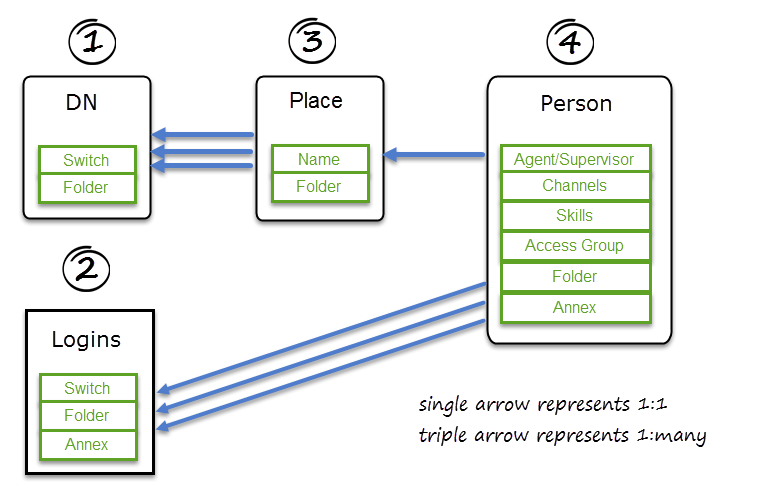
To access the Manage Templates page, click Contact Center Settings, and then click Templates.
To add a template, select a template type, and then click Add. For each template that you create, ensure that you give the template a unique name.

Click the following links to learn how to configure each template type:
[+] Click to show DN template
DN template
DN Templates specify switch and folder where the DN needs to be created.
[+] Click to show Login template
Login template
Agent Login Templates specify switch, folder, and annex options.
In the Agent Login Name field, you can use a variable to specify the contents of the field, for example, {{person.userName}}.
[+] Click to show Place template
Place template
Place Templates must contain one or more DN Templates.
If your contact center has requirement to specify unique place names for different business groups or regions, type a place name variable. For example, the place name might be the same as the agent's phone number or as the agent user name. Place names can contain the following variables:
- {{person.userName}}
- {{person.emailAddress}}
- {{phone.number}}
- {{phone.description}}
- {{phone.index}}
You can also combine variables. For example: {{person.userName}}-{{phone.index}} creates JohnAppleseed-1 and JohnAppleseed-2 if JohnAppleseed has two phone numbers.
[+] Click to show Person template
Person Templates define properties such as Channels, Skills, Access Groups, Annex options, folder, and Supervisor role for newly created agents. You also need to select a place template and one or more login template. Then you can select the channels, skills, annex, and access groups that you want to apply to this template. Before you save the Person template, select the folder where the user is created.



